How to Use Nexus Contacts
A complete guide to managing your contacts, tracking relationships, and never forgetting someone you meet.
Your Dashboard
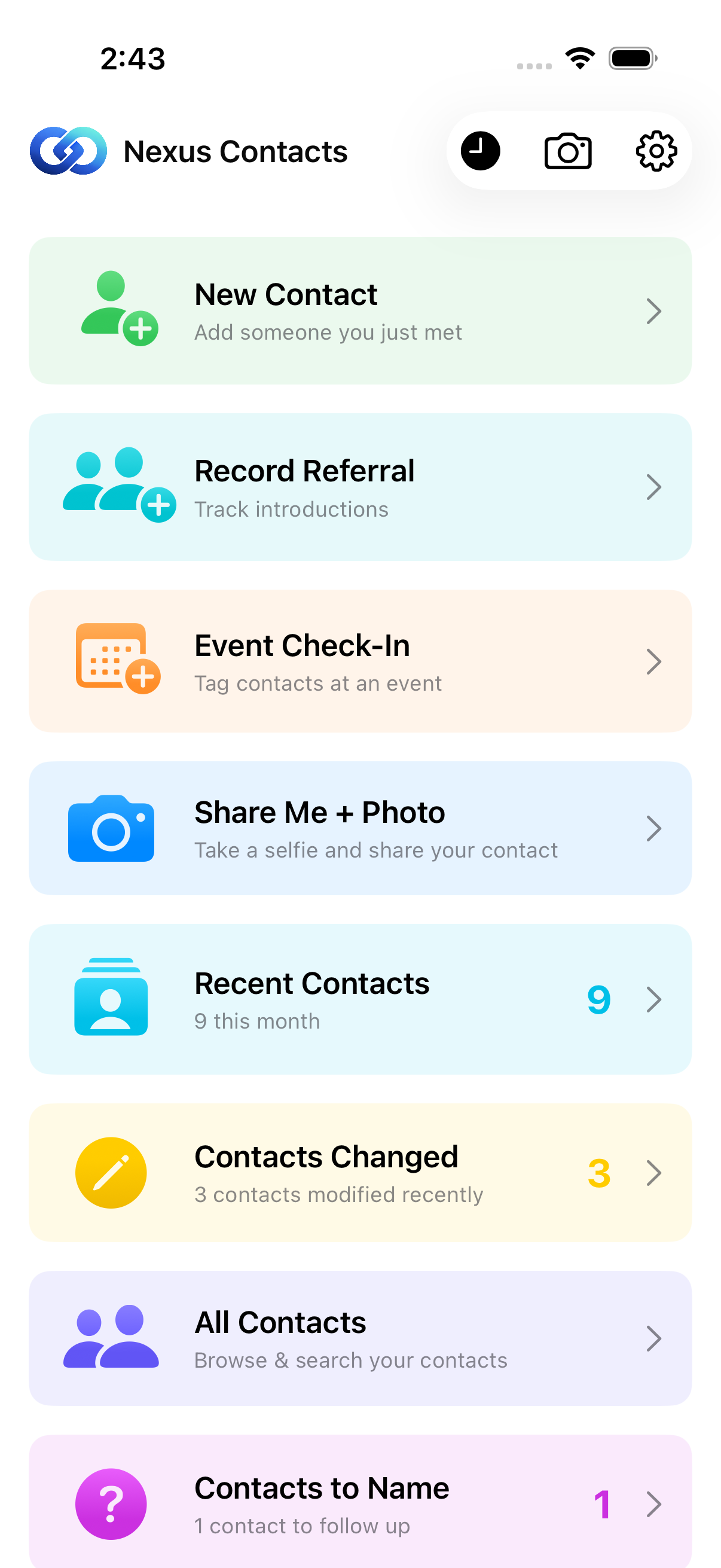
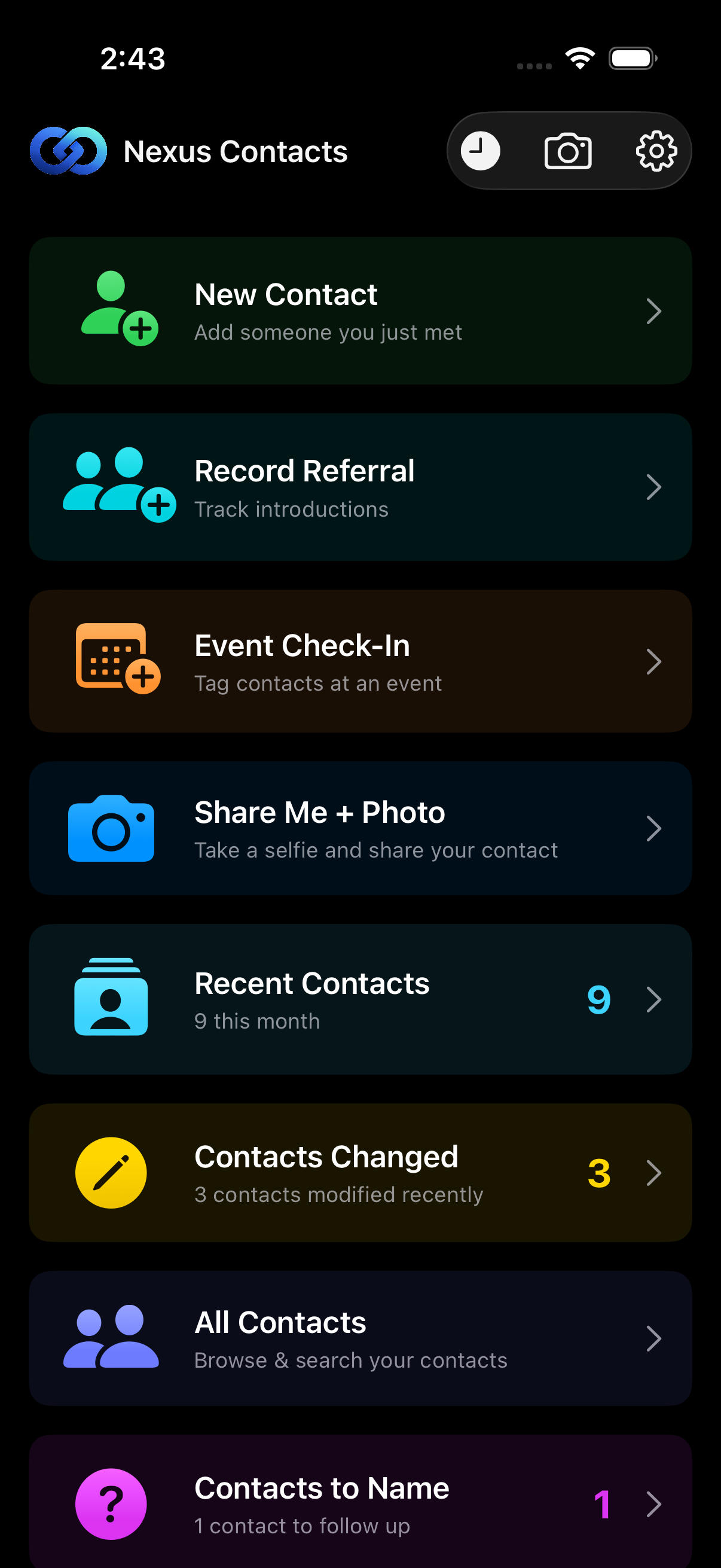
The dashboard is your home base. At a glance, you can see your recent activity, pending follow-ups, and quick actions for everything you do most.
- • Activity cards show recent contacts, reminders, and audit status
- • Quick actions let you share your contact, create new contacts, or check into events
- • Smart cards appear when contacts are modified or relationships need attention
Meeting Someone New
1. Capture a Selfie
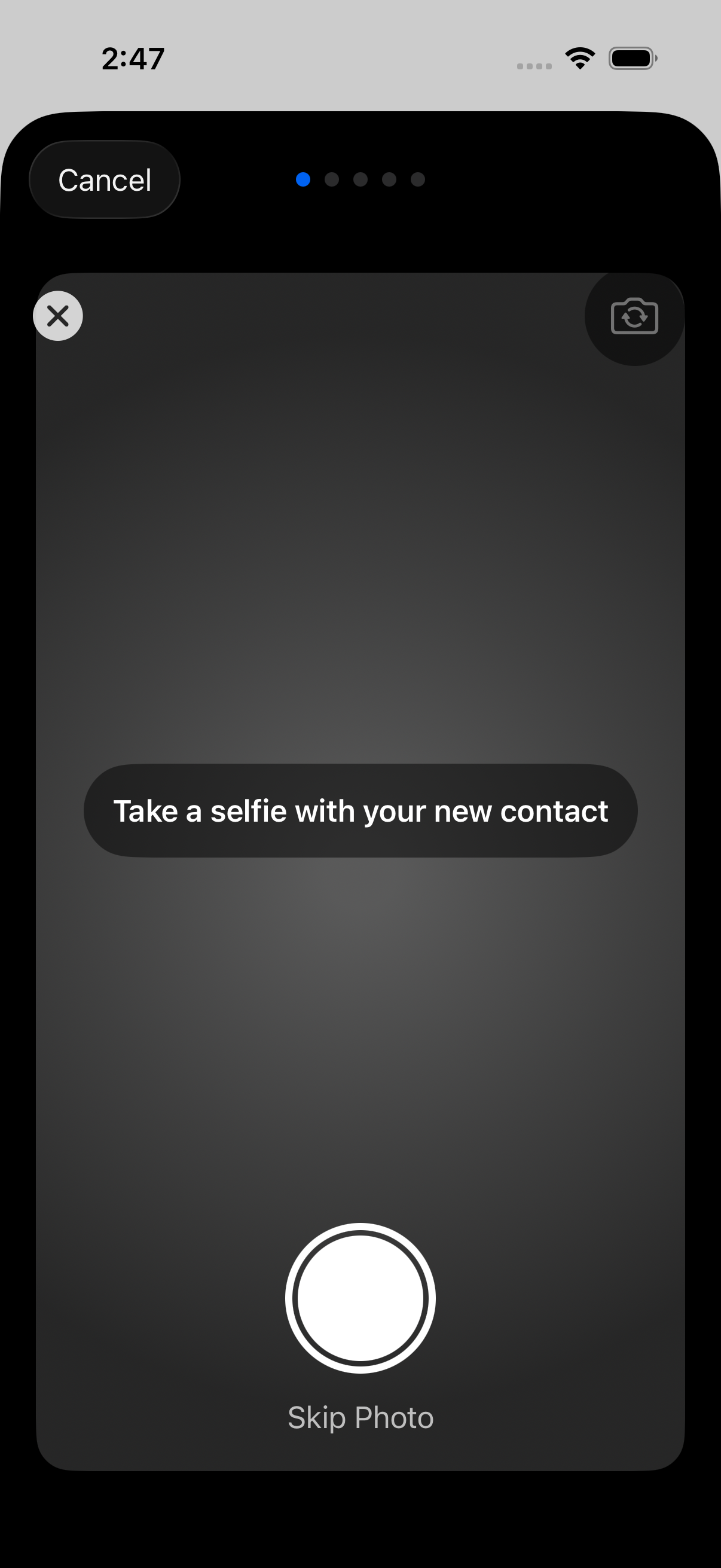
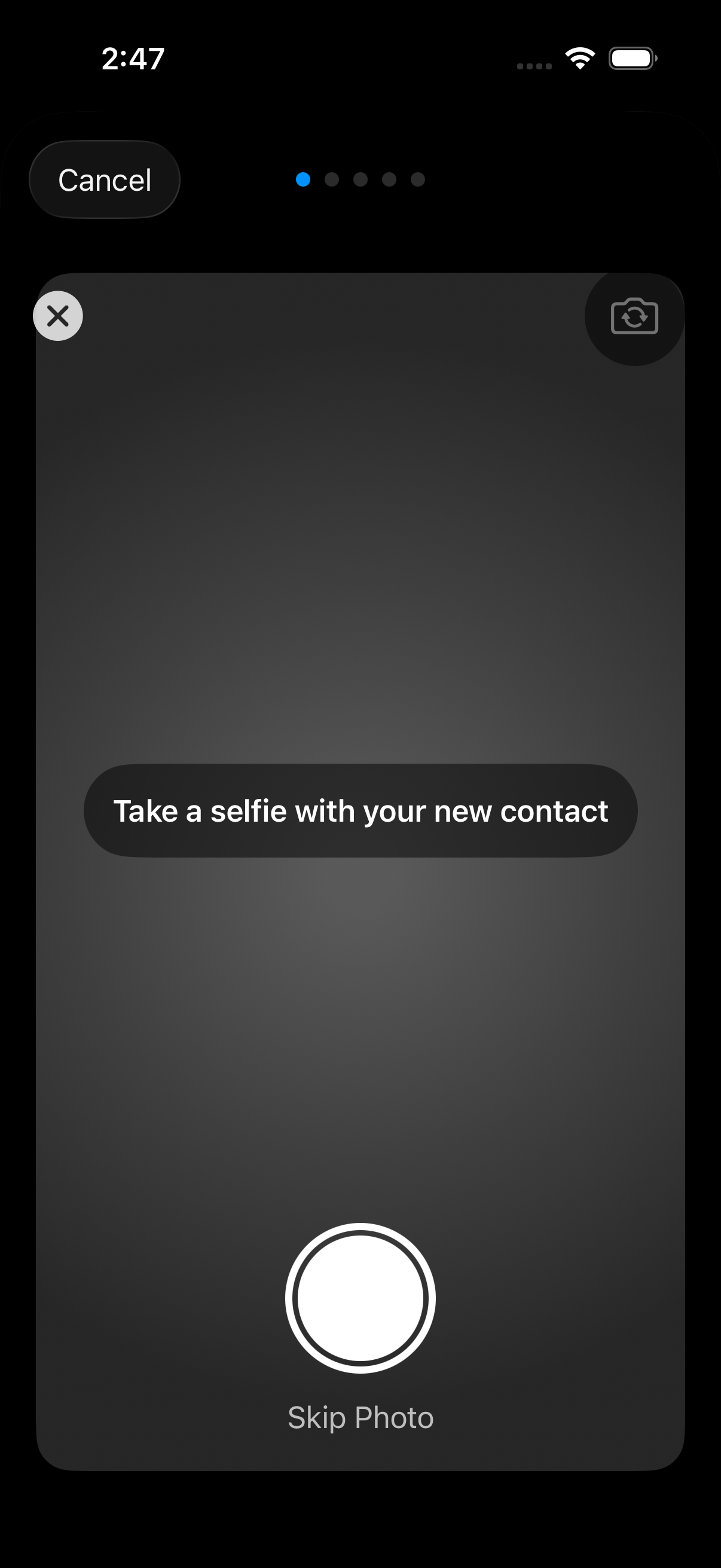
Tap "Share Me" on the dashboard to start. Nexus opens the camera so you can capture a selfie together — a visual memory of how you met. Take as many photos as you like, or skip this step entirely.
2. Enter Their Number & Pick a Card
Enter the recipient's phone number, then choose which ShareCard to send — personal, professional, or a custom persona you've created.
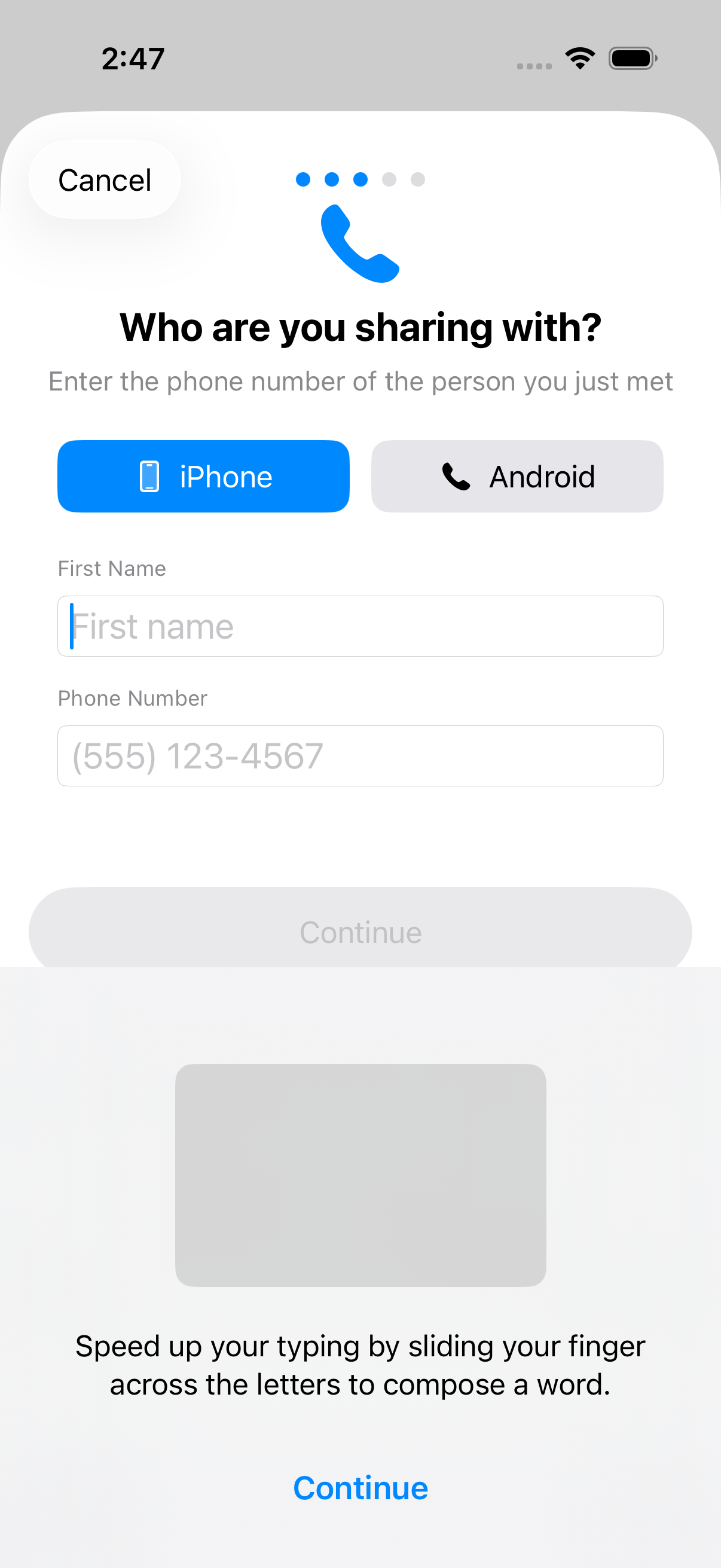
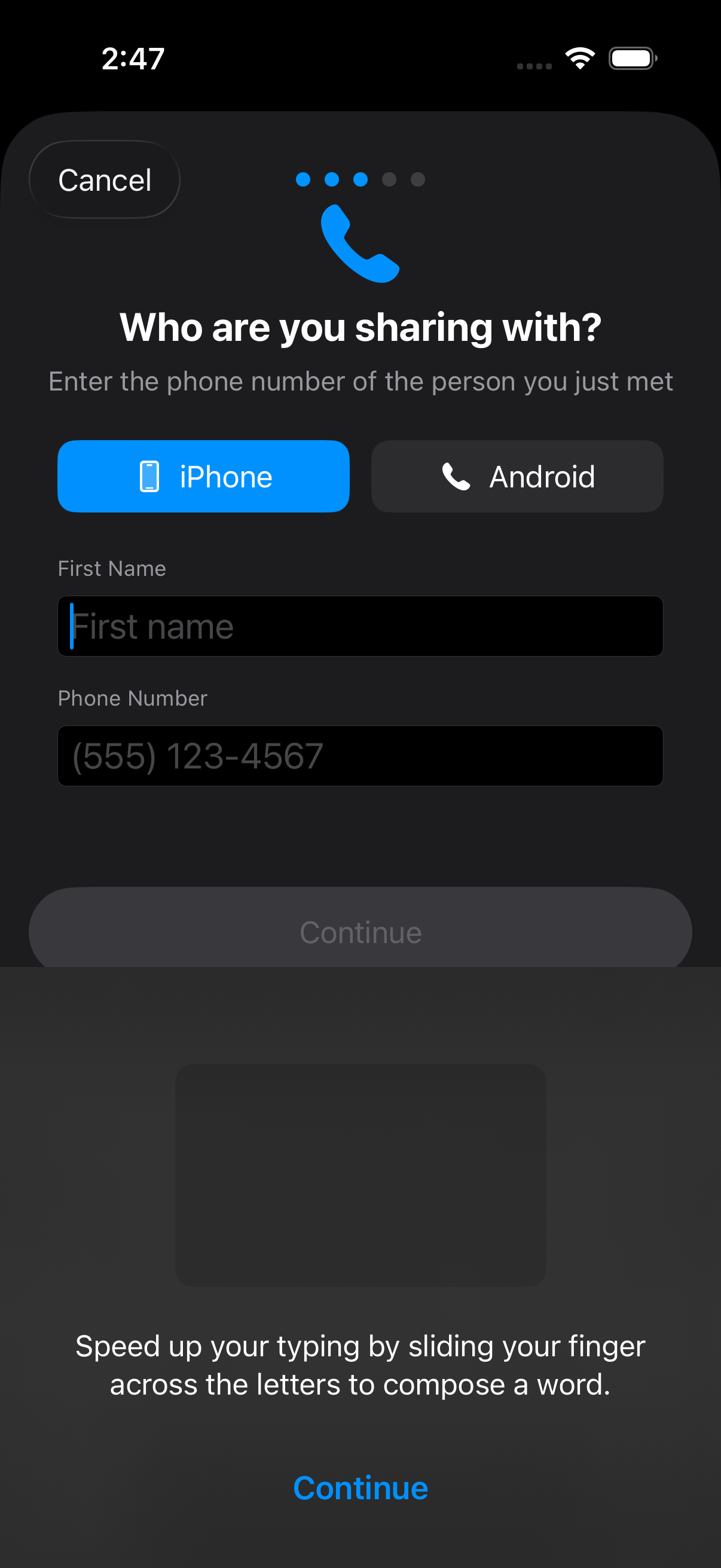
Enter their number
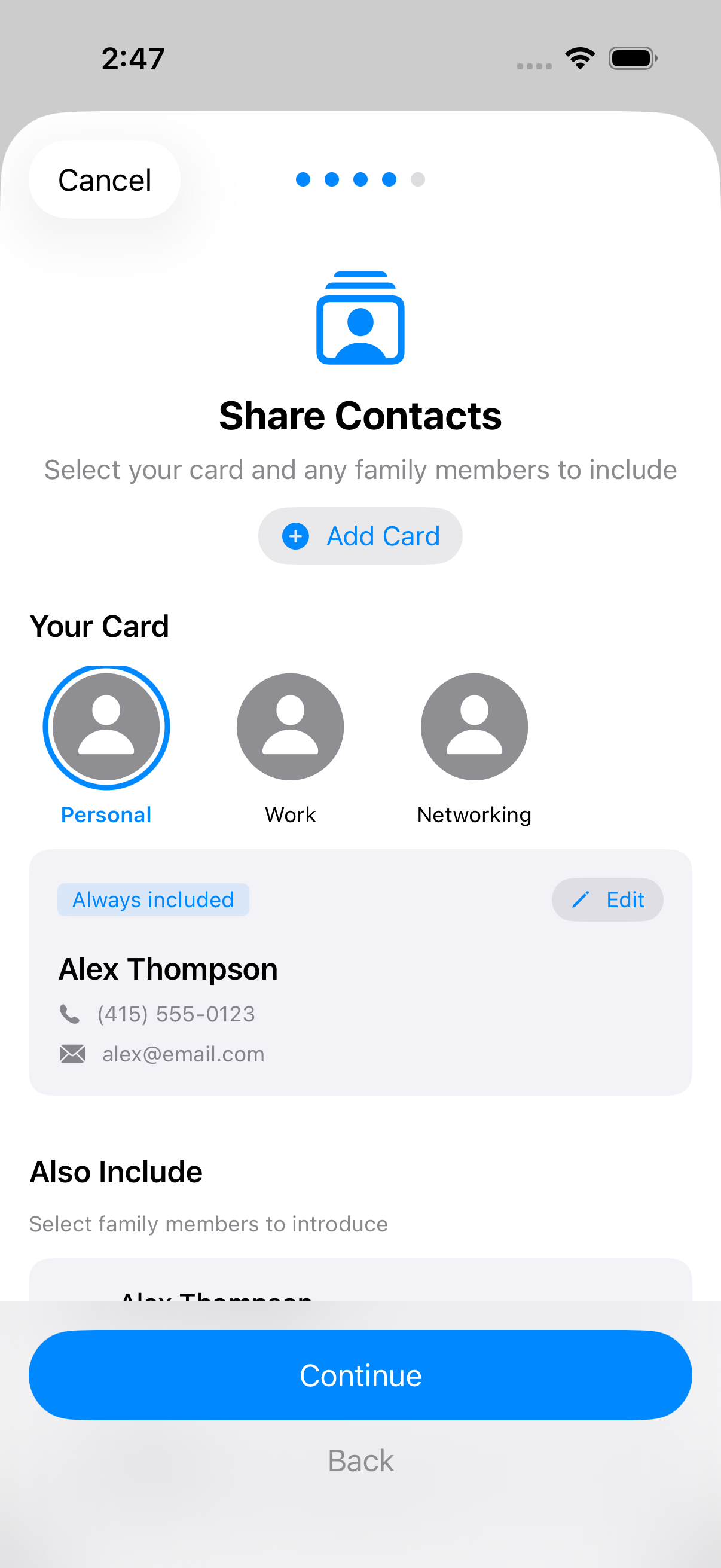
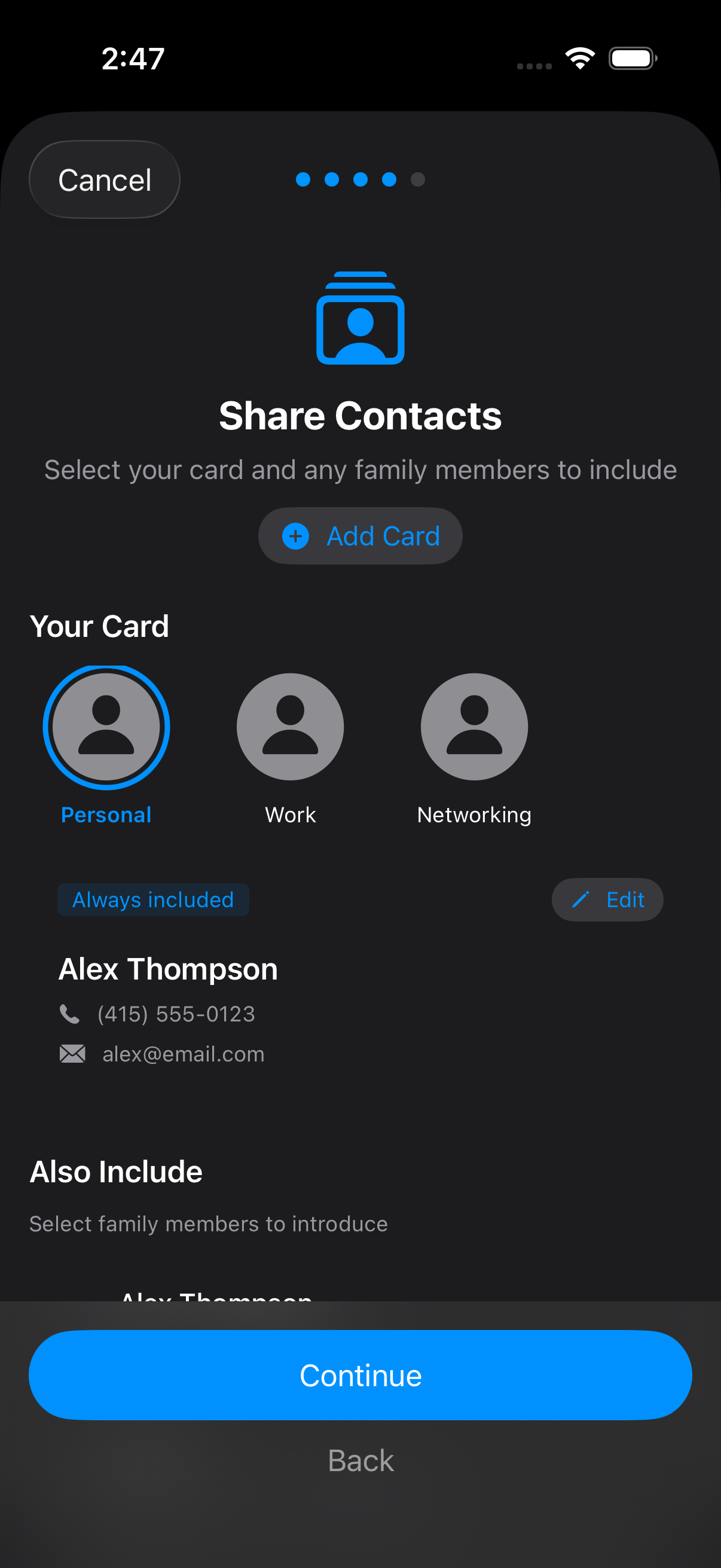
Pick a card to send
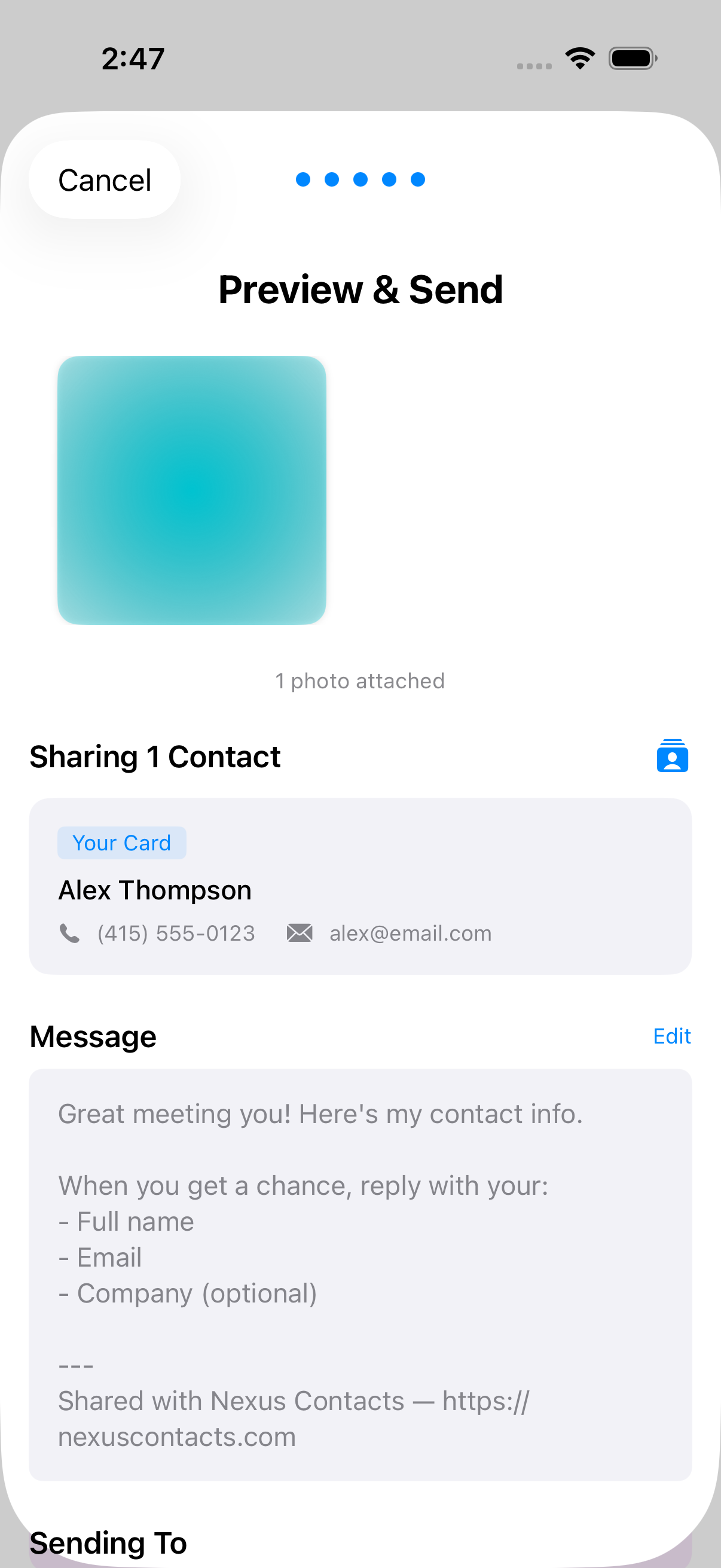
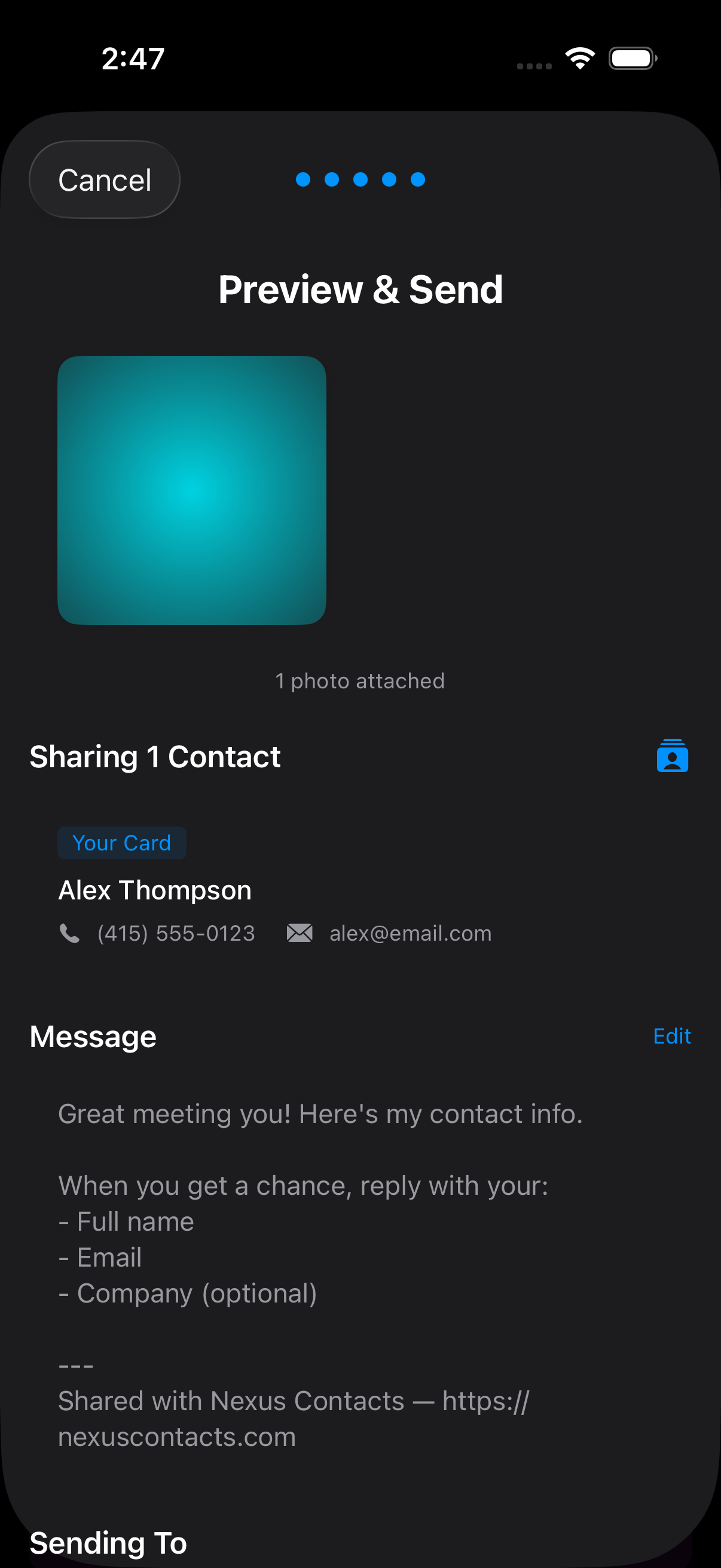
3. Preview & Send
Review everything before sending — your photos, selected card, and recipient. Nexus sends your contact card via your preferred messaging app (Messages or WhatsApp — configurable in Settings).
After sending, Nexus prompts you to set a follow-up reminder so the connection doesn't go cold.
Check Into Events
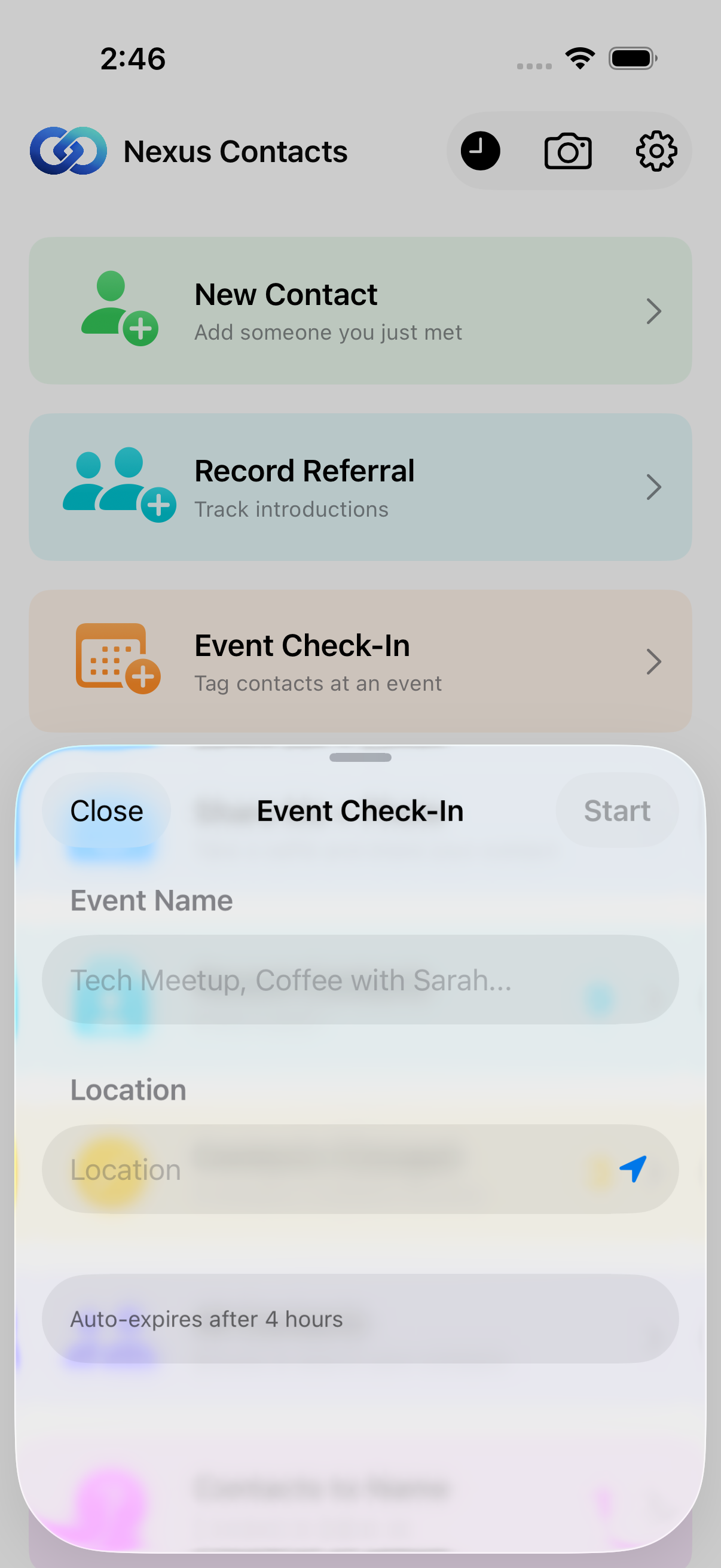
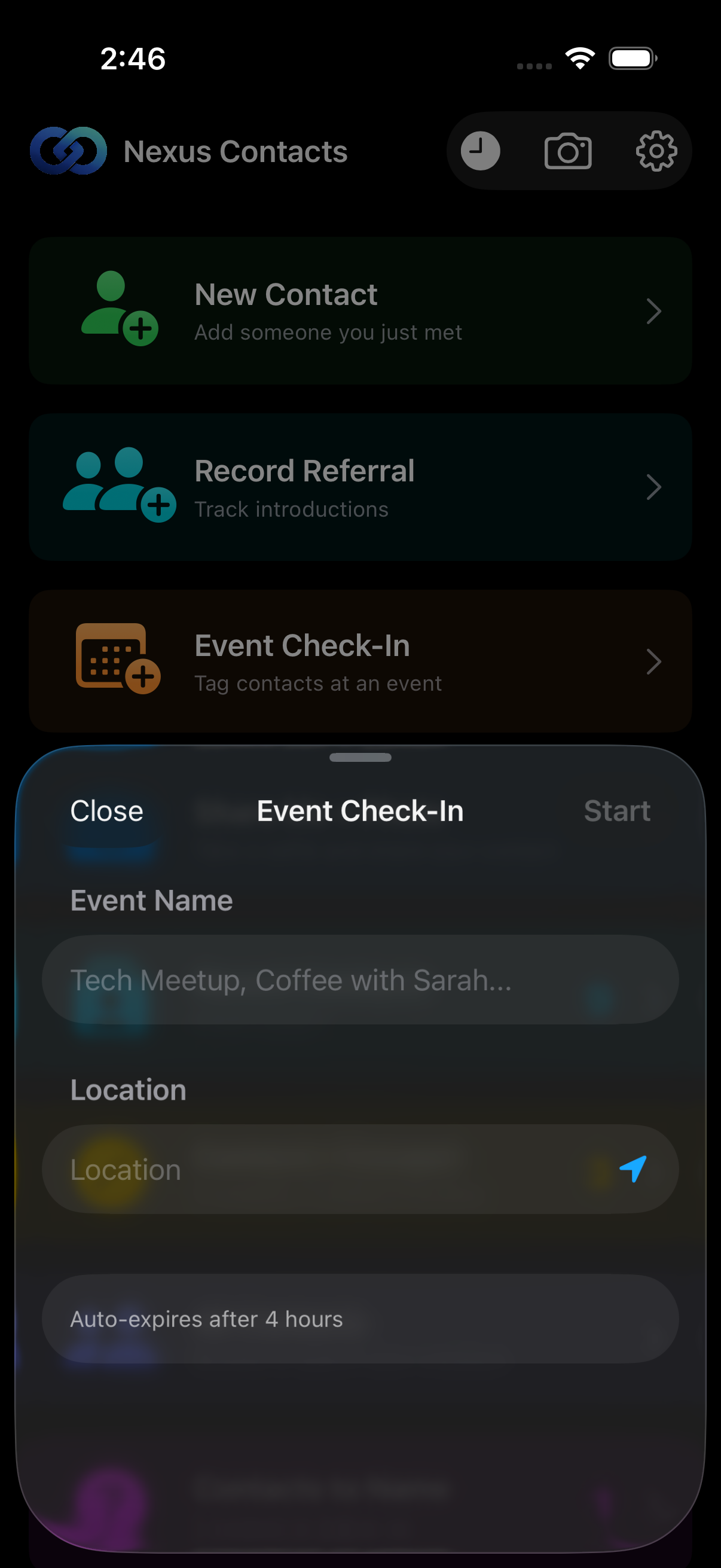
At a conference, meetup, or social event? Tap "Event Check-In" to tag the event. Nexus suggests events from your calendar, or you can enter a custom name.
Every contact you add while checked in automatically gets tagged with the event, so you can look back and remember exactly where you met.
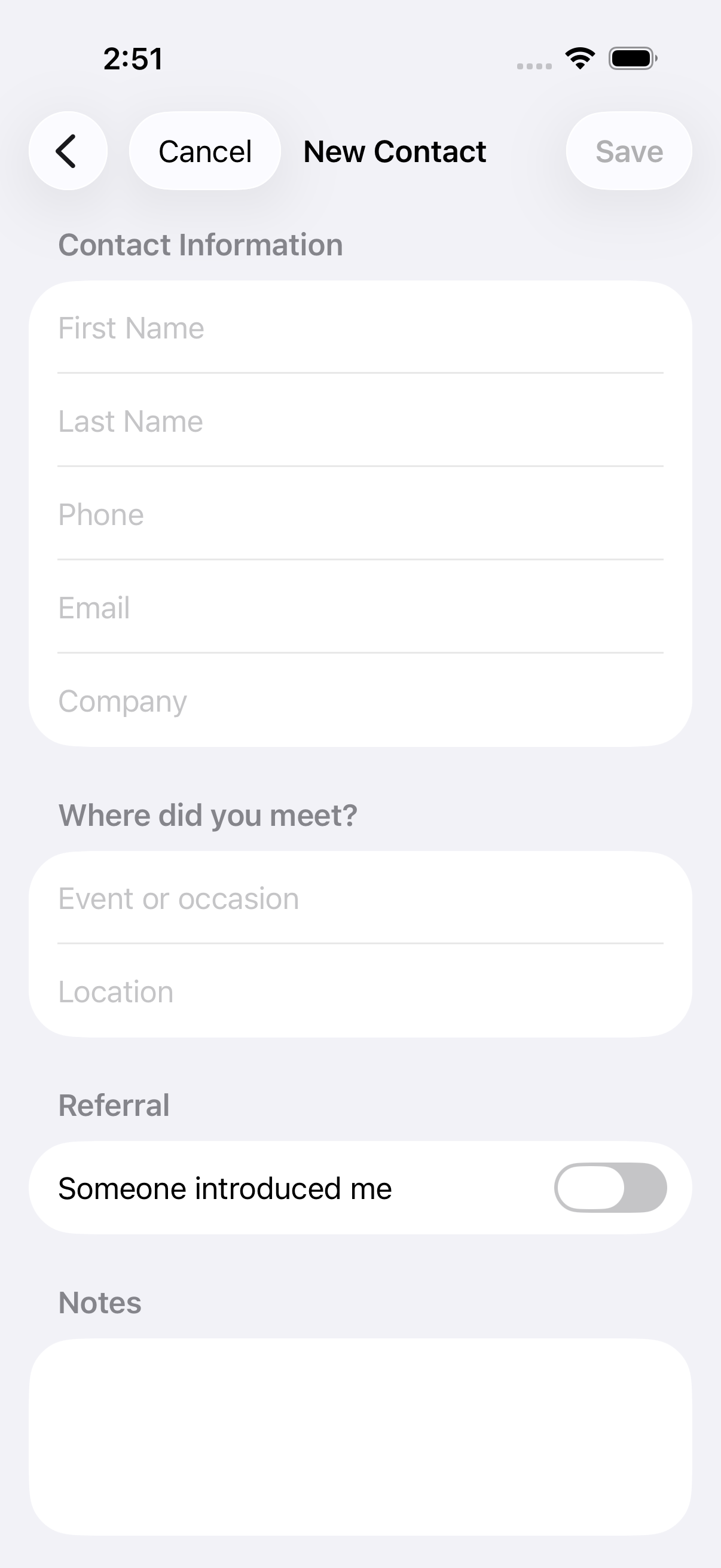
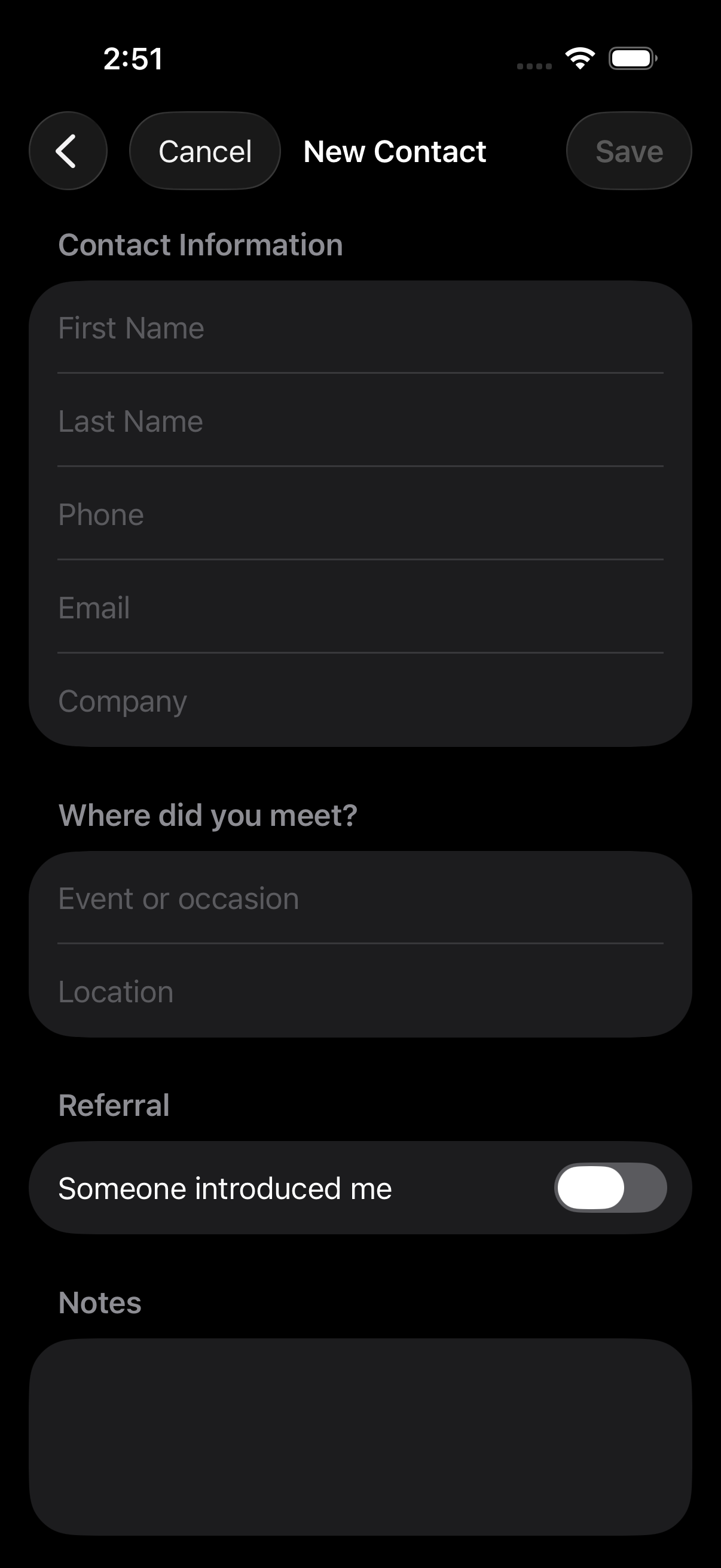
Add Contacts Manually
Need to add someone without the share flow? Tap "New Contact" to create a contact directly. Add their details, notes, and context — all in one place.
Browsing Your Contacts
All Contacts
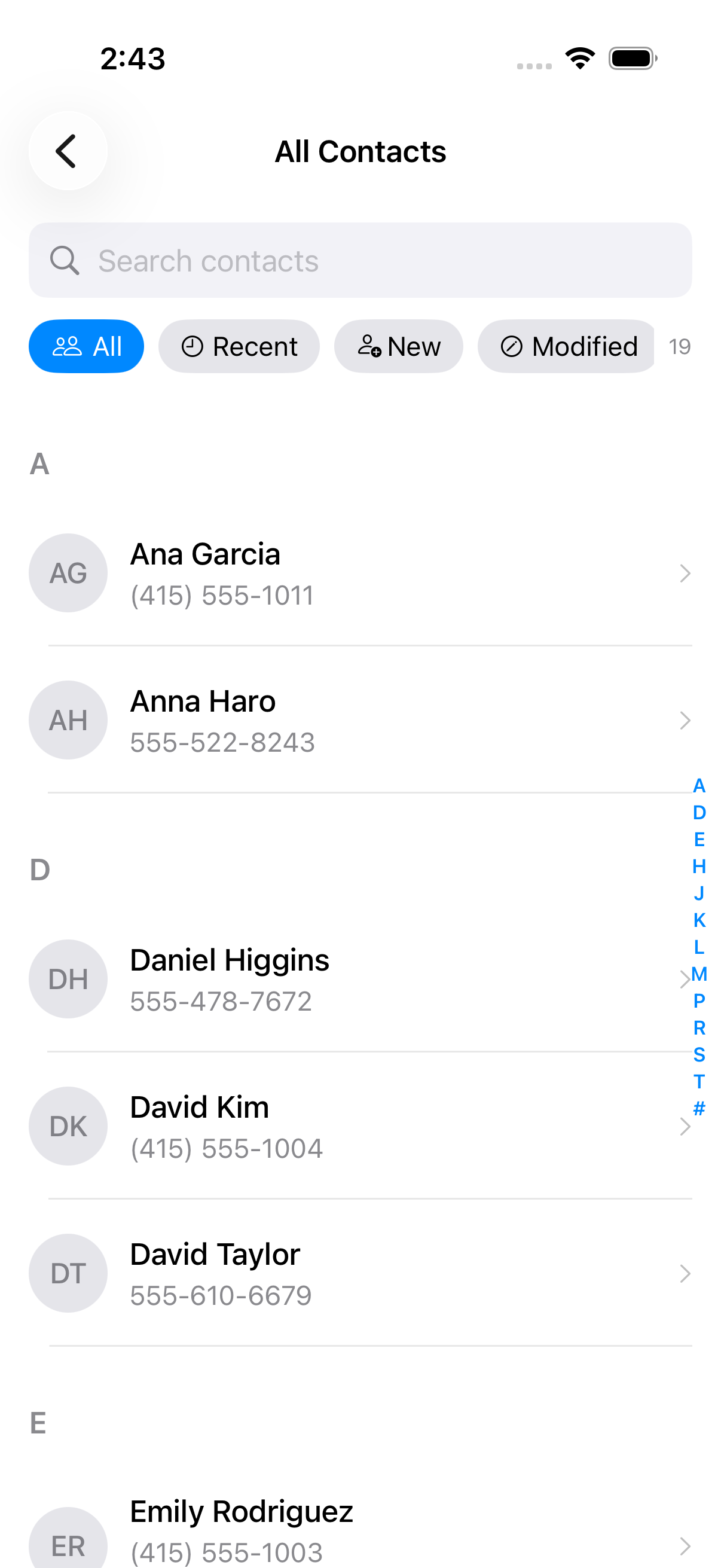
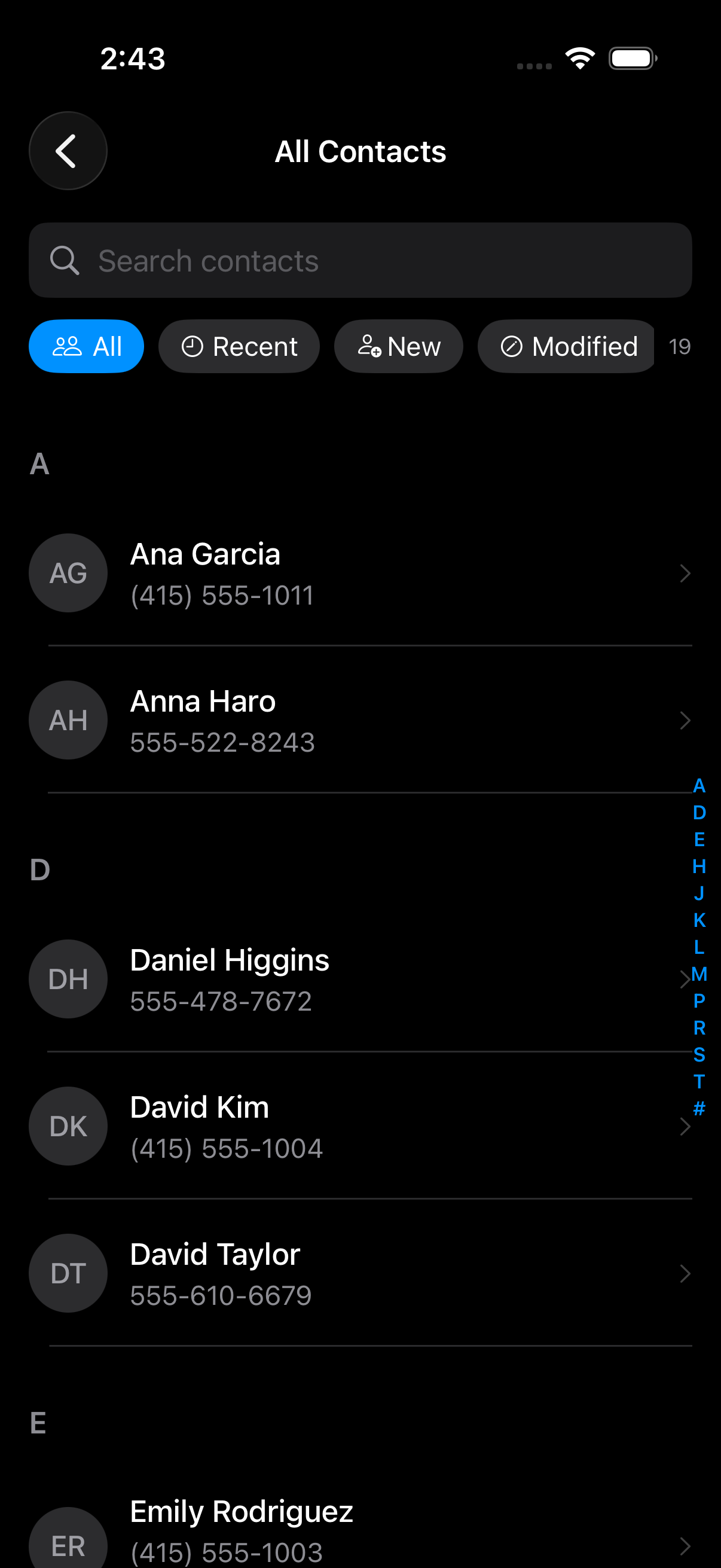
Browse your entire address book with an A-Z index. Use the search bar to find anyone instantly, or tap filter chips to narrow your view.
Smart filters include: All, Recent, Has Notes, Unnamed, New, Modified, Archived, and more. Swipe on any contact for quick actions like call, message, or add a note.
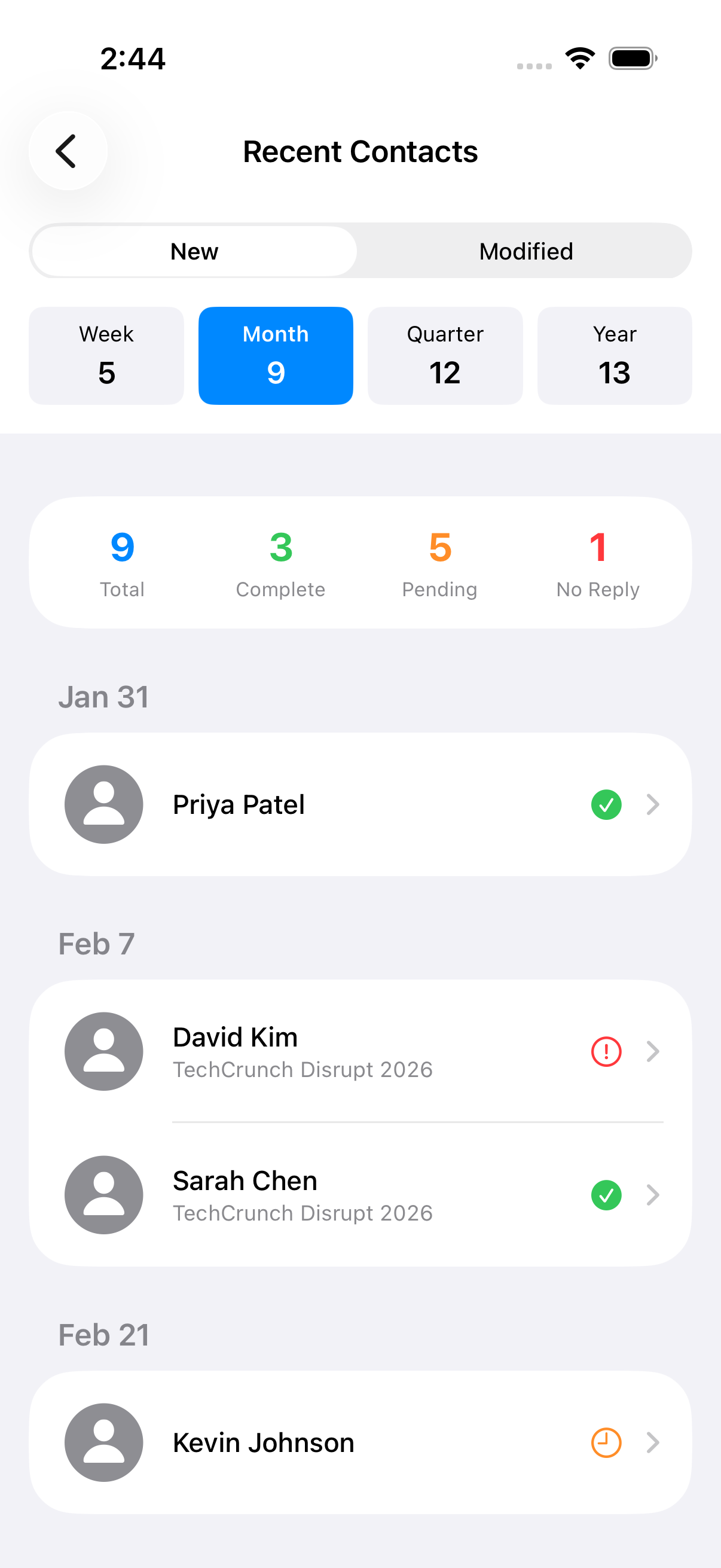
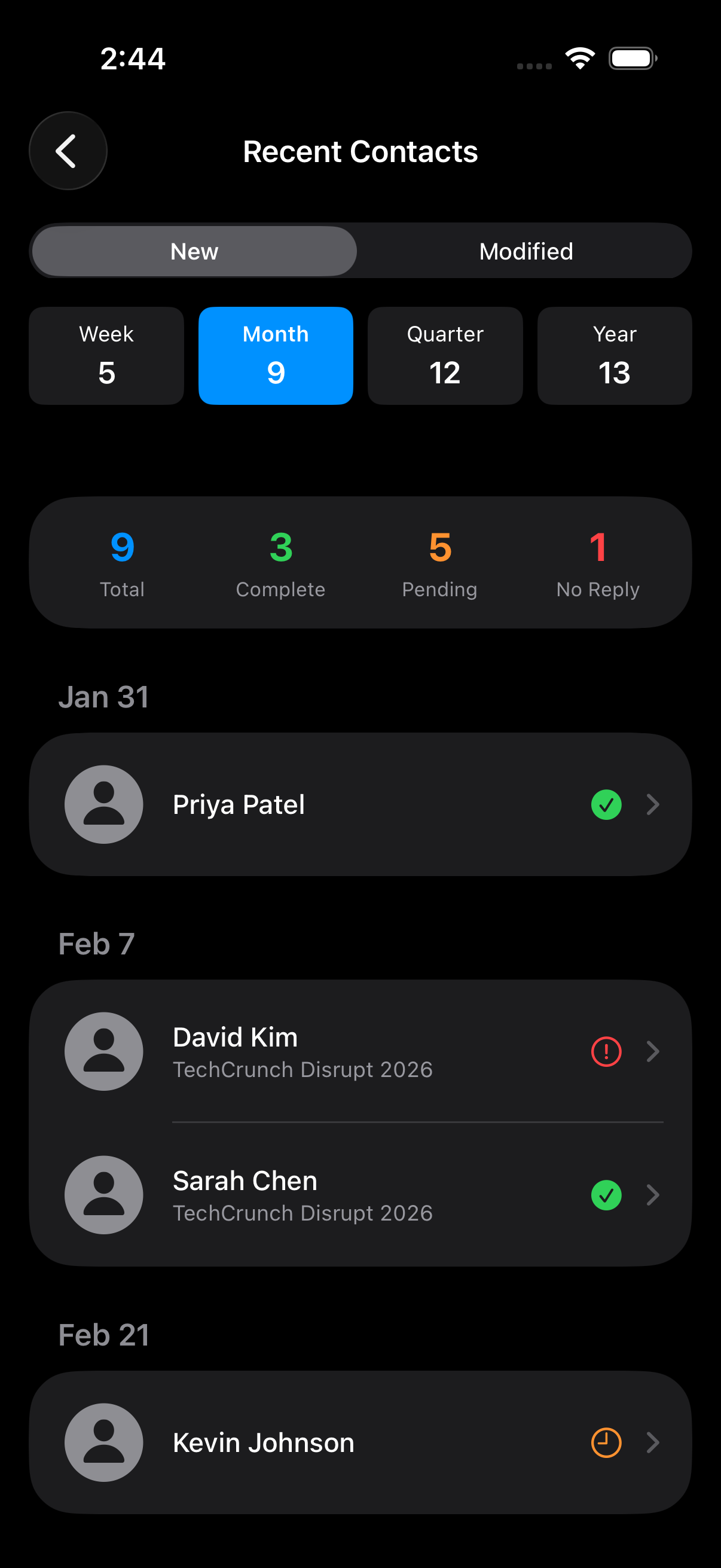
Recent Contacts
See a timeline of contacts you've recently added, grouped by time period. This makes it easy to review people you met at last week's event or follow up with someone from yesterday.
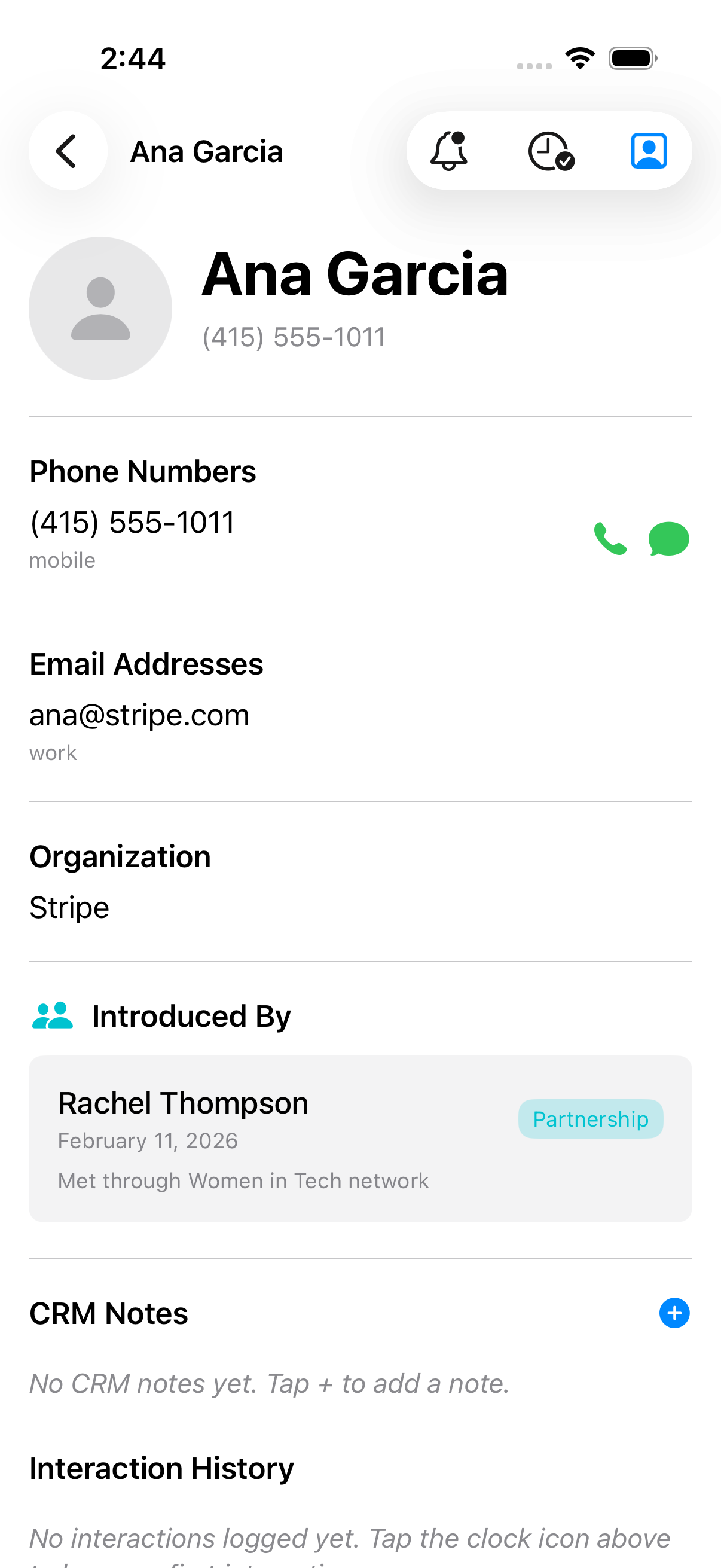
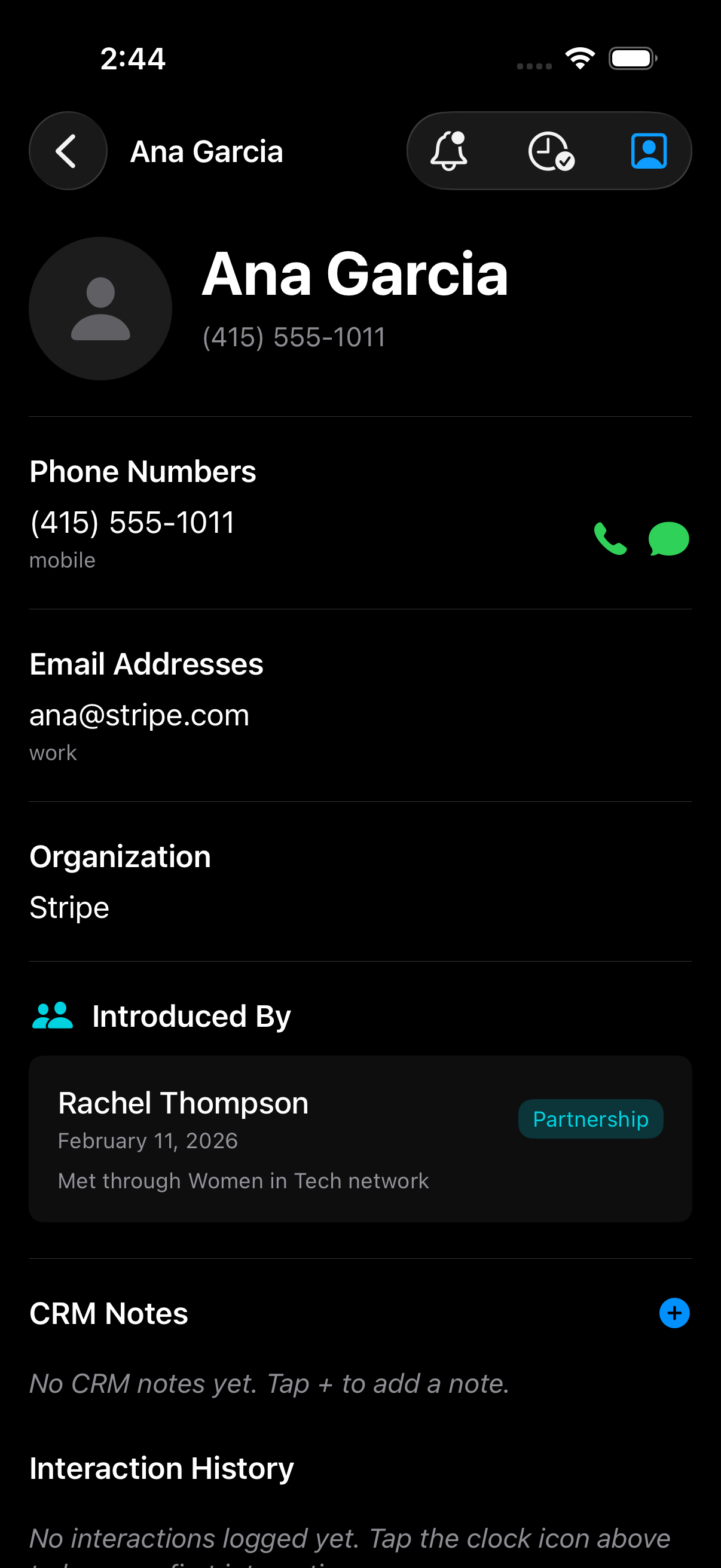
Contact Details & Notes
Each contact's detail page shows everything you need — phone numbers, emails, and your private CRM notes that only you can see.
- • CRM Notes — track conversations, interests, and key details
- • Interaction history — see past calls, messages, and meetings
- • Change tracking — see when contact details were modified
- • Quick actions — call, message, or set a reminder directly
Staying Connected
Follow-Up Reminders
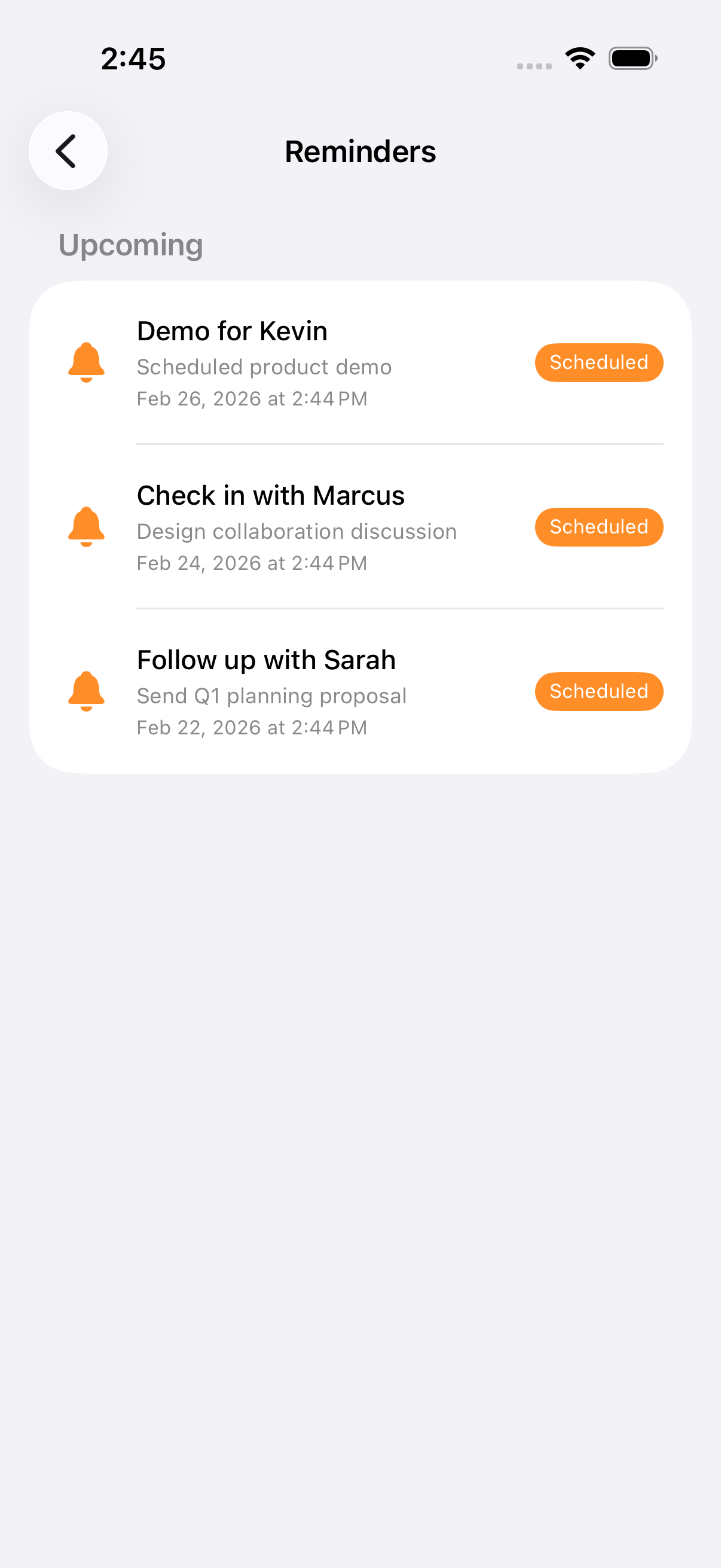
Set reminders for people you need to follow up with. After meeting someone new, Nexus can prompt you to reach out. Schedule reminders for days, weeks, or specific dates — and never let a promising connection go cold.

Drifting Contacts
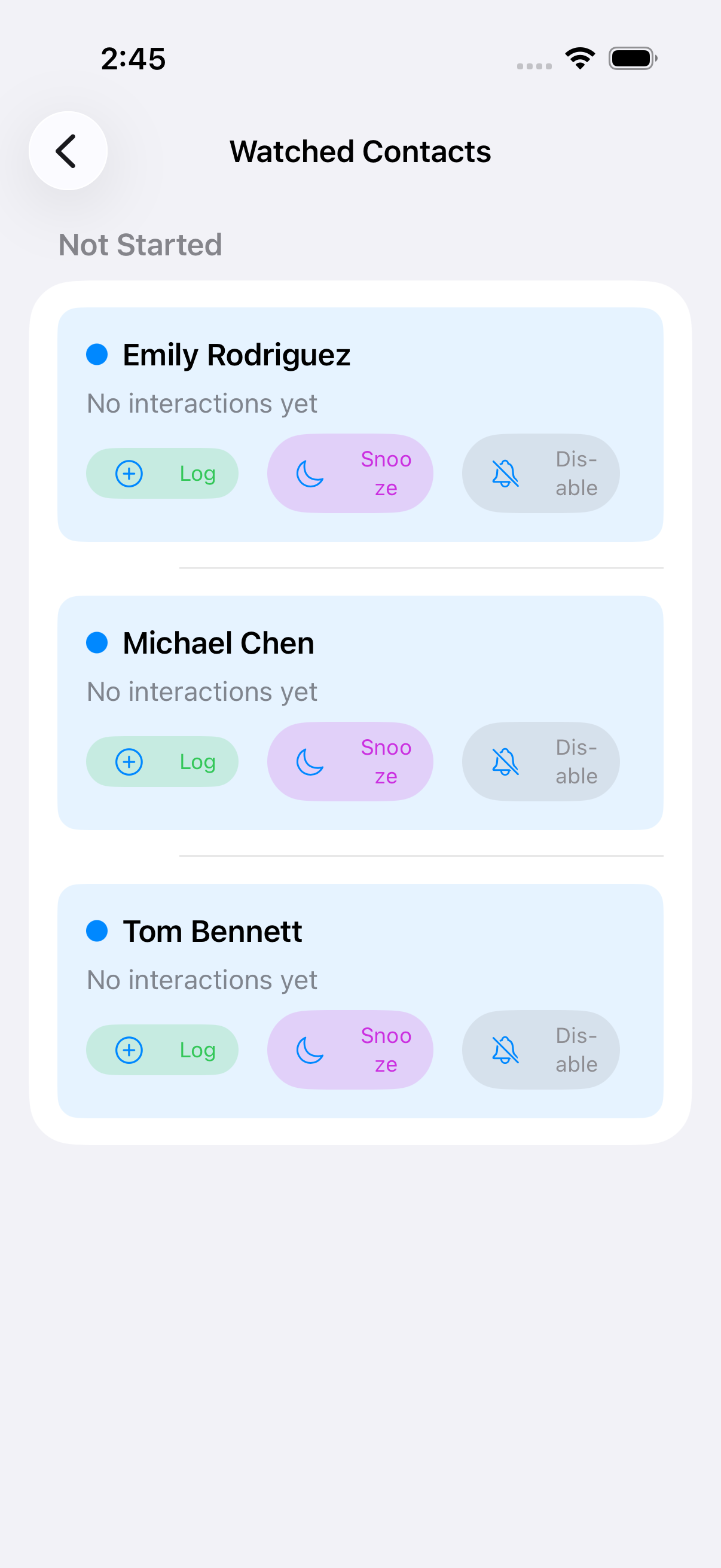
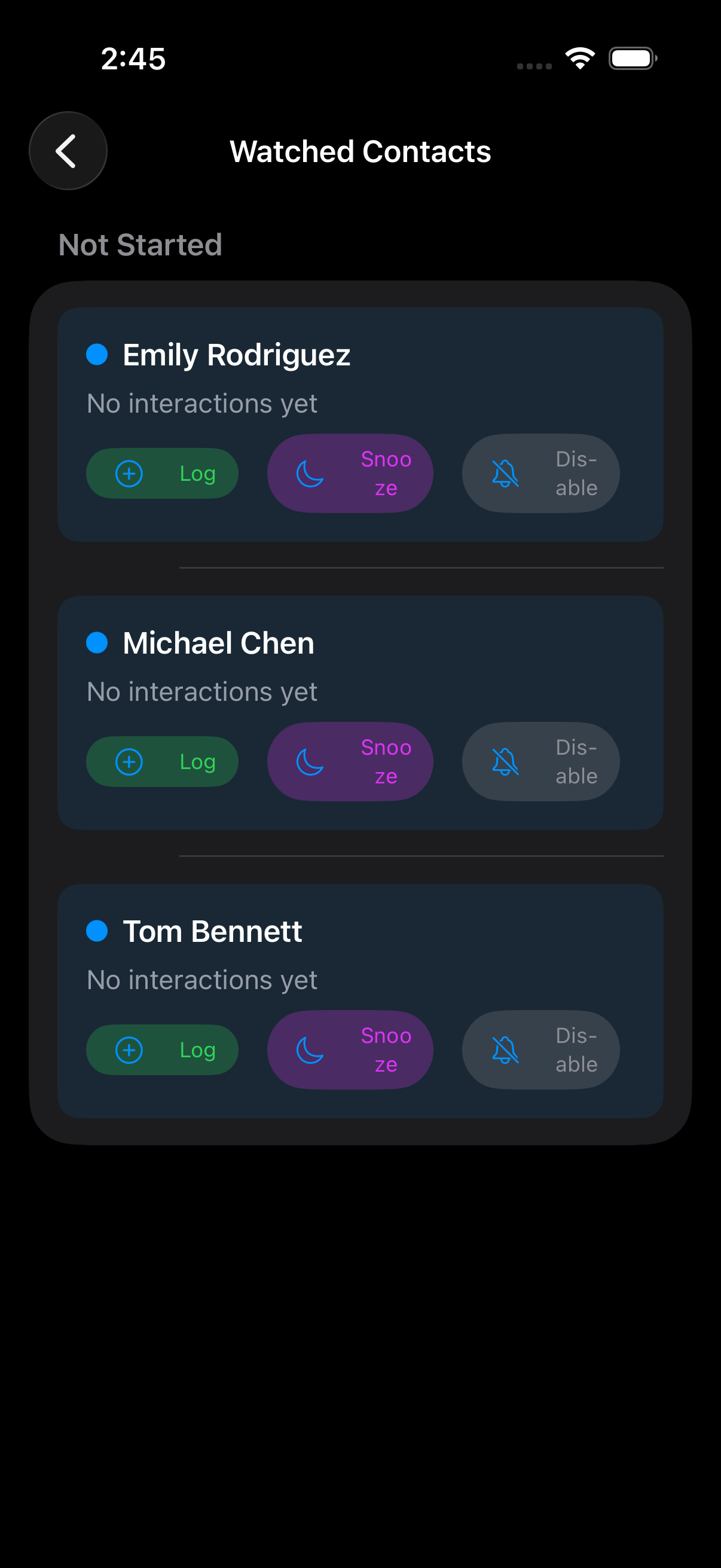
Watch the contacts that matter most to you. Nexus tracks your interaction frequency and alerts you when relationships start drifting — before it's too late to reconnect.
Referral Tracking
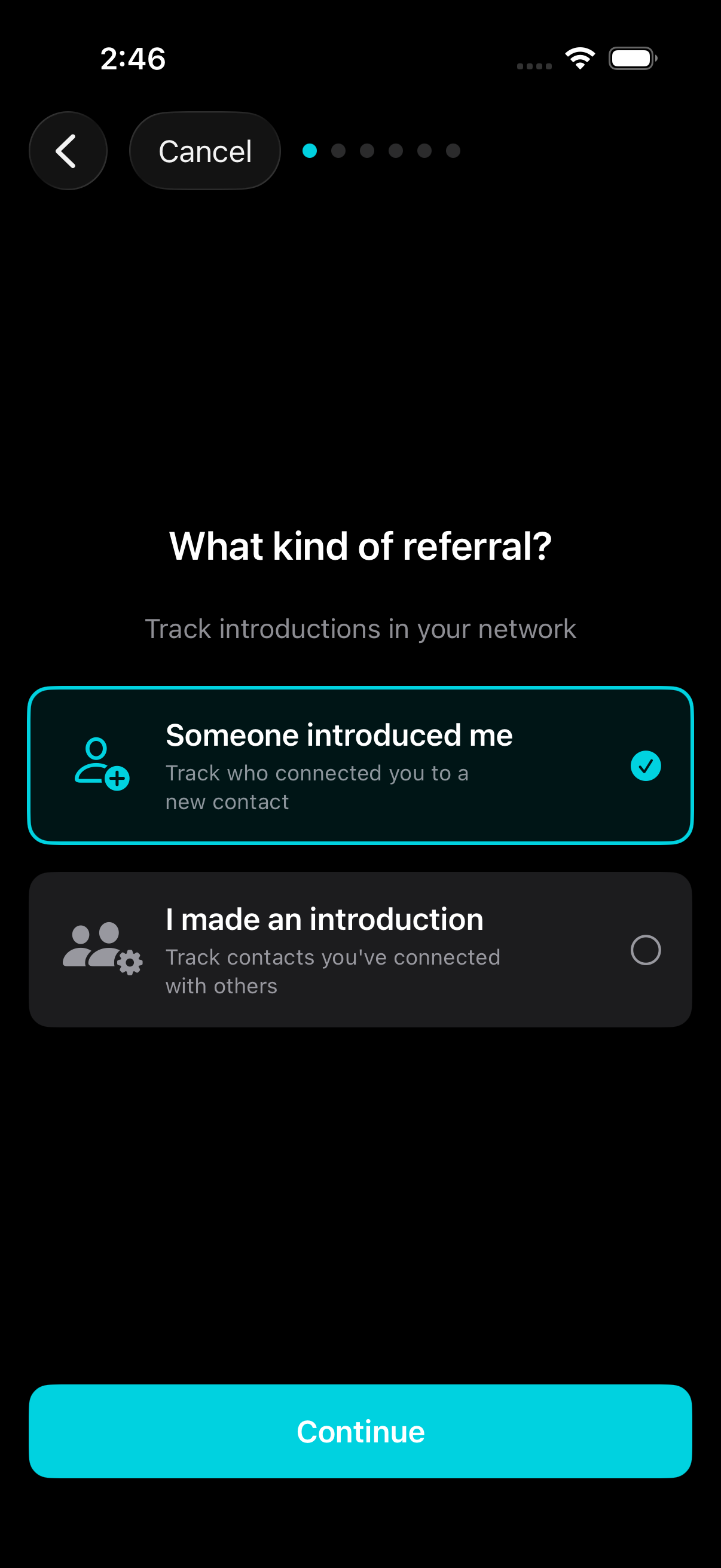
Know who introduced you to whom. Record referrals in either direction — "someone introduced me" or "I made an introduction" — to build a complete map of your network.
Add context about why you were introduced, tag the opportunity type, and capture a photo to remember the moment.
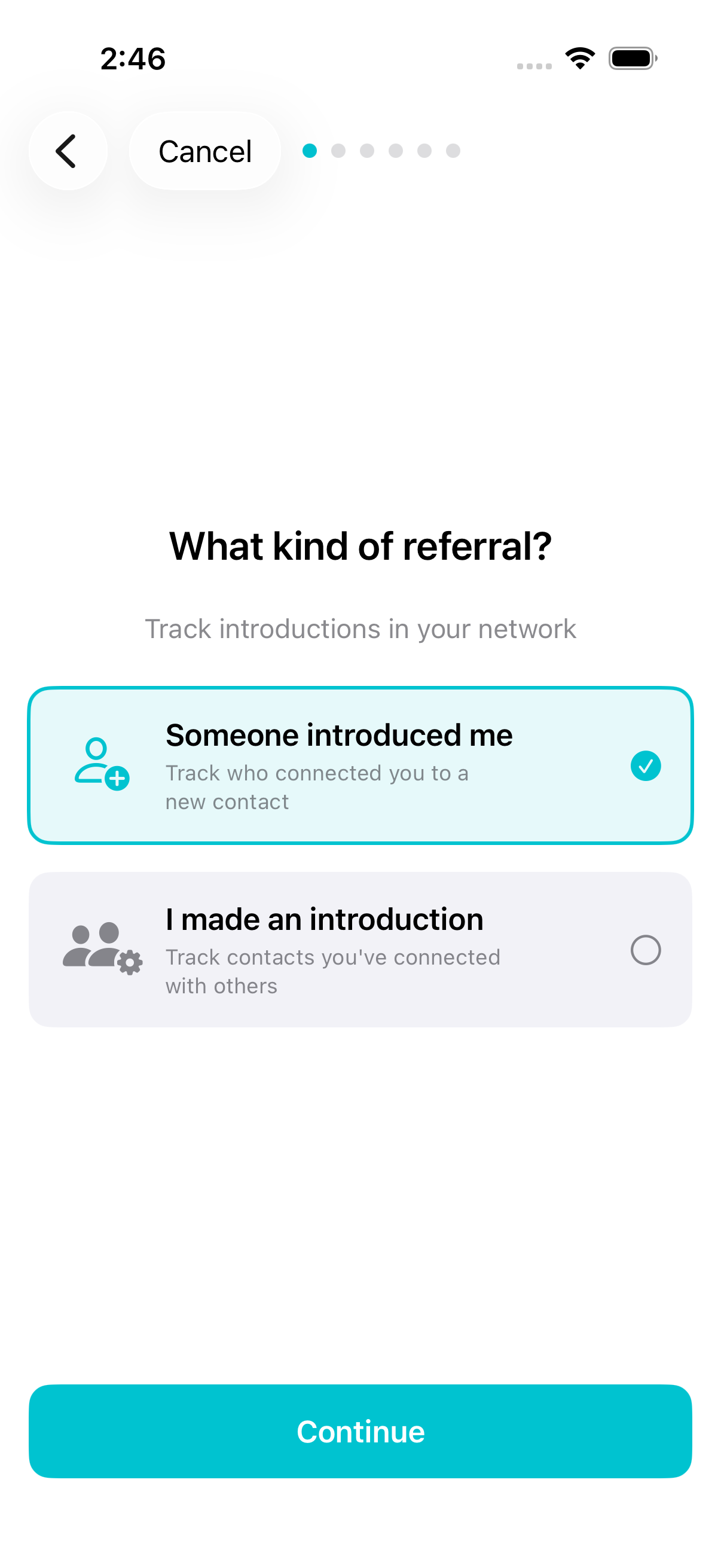
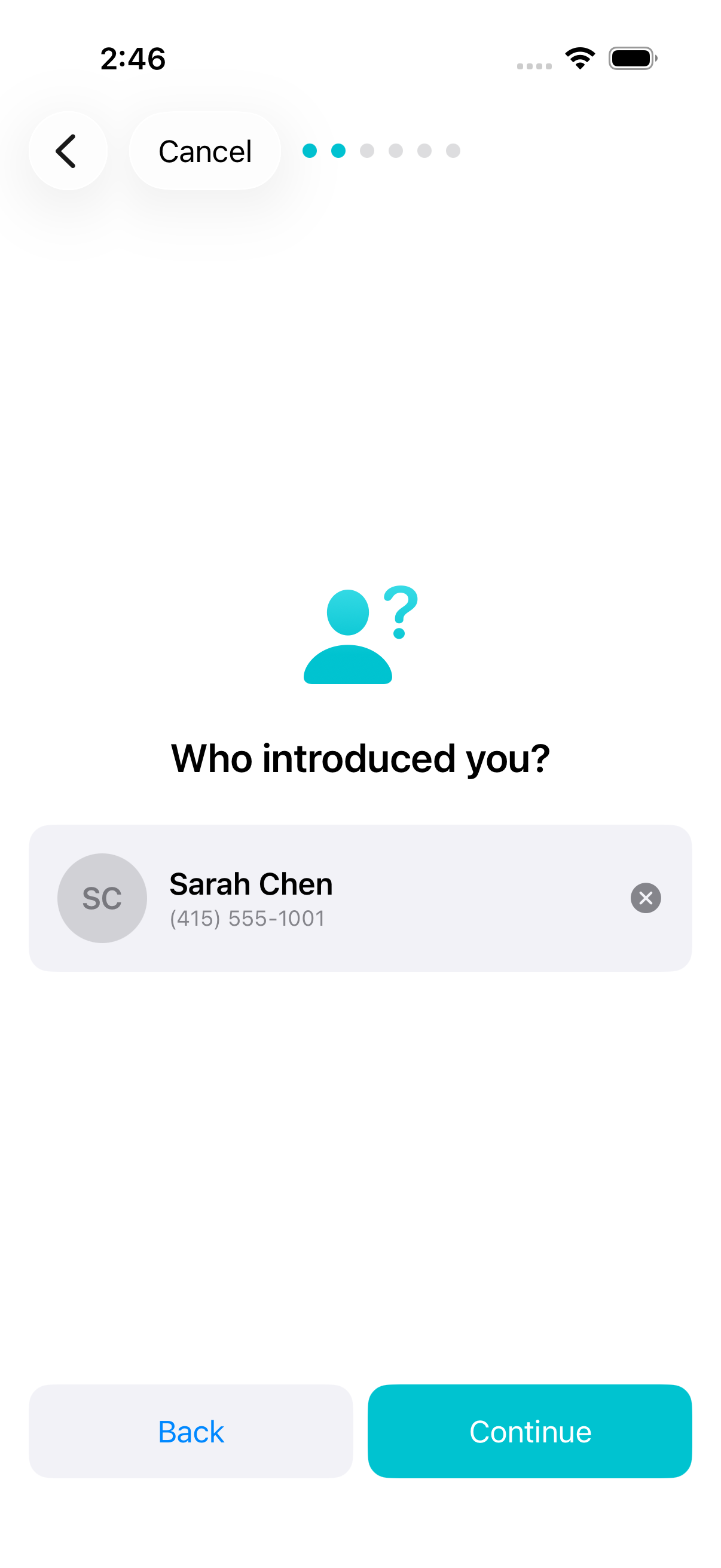
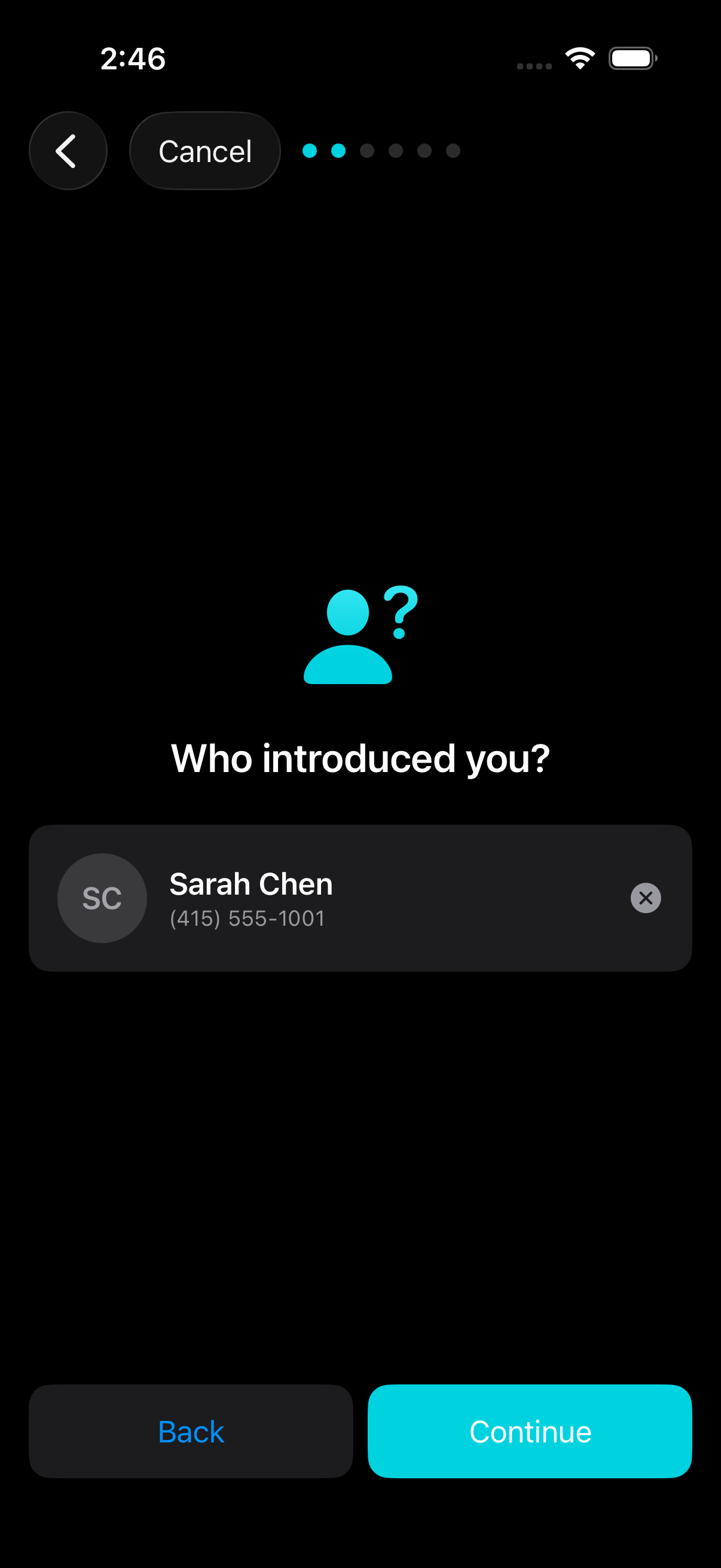
Pick the person who made the introduction
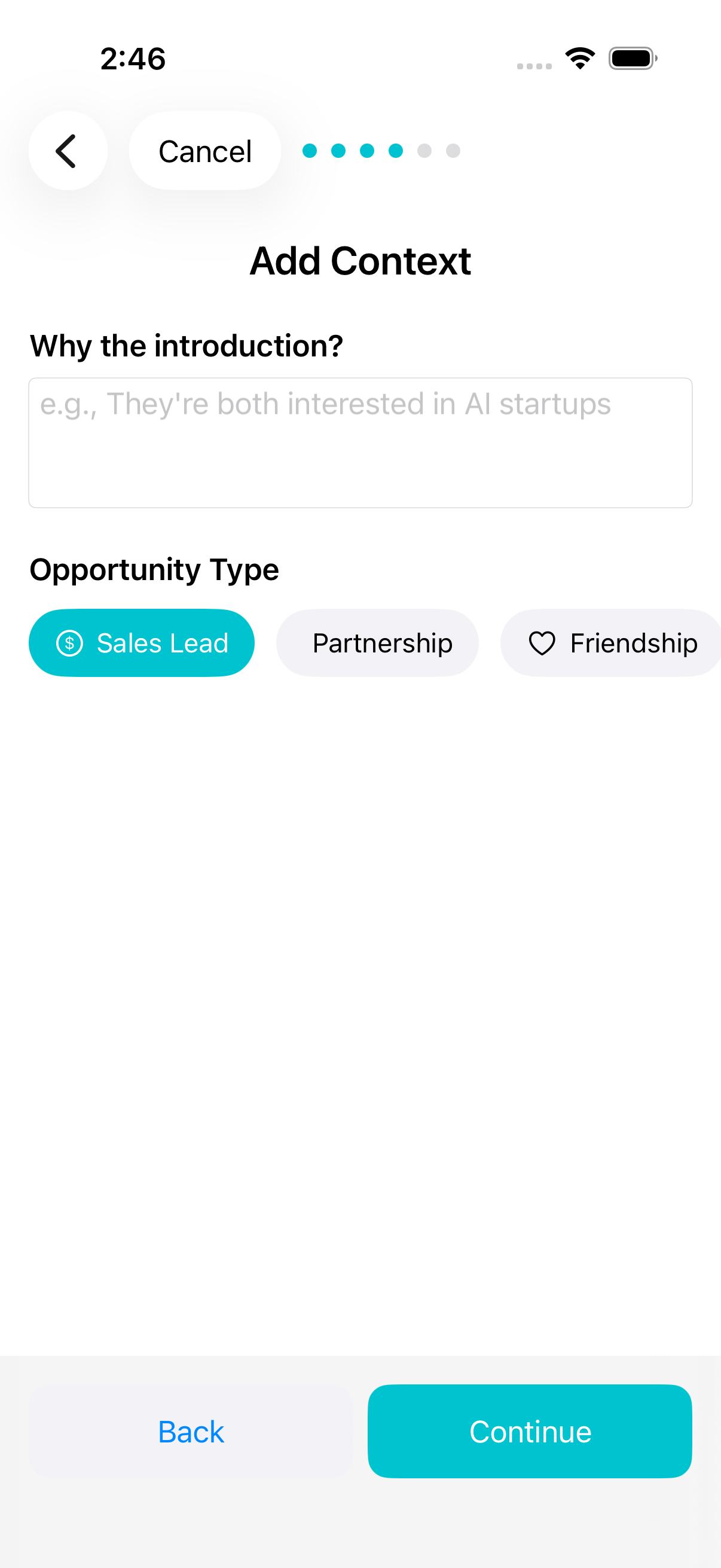
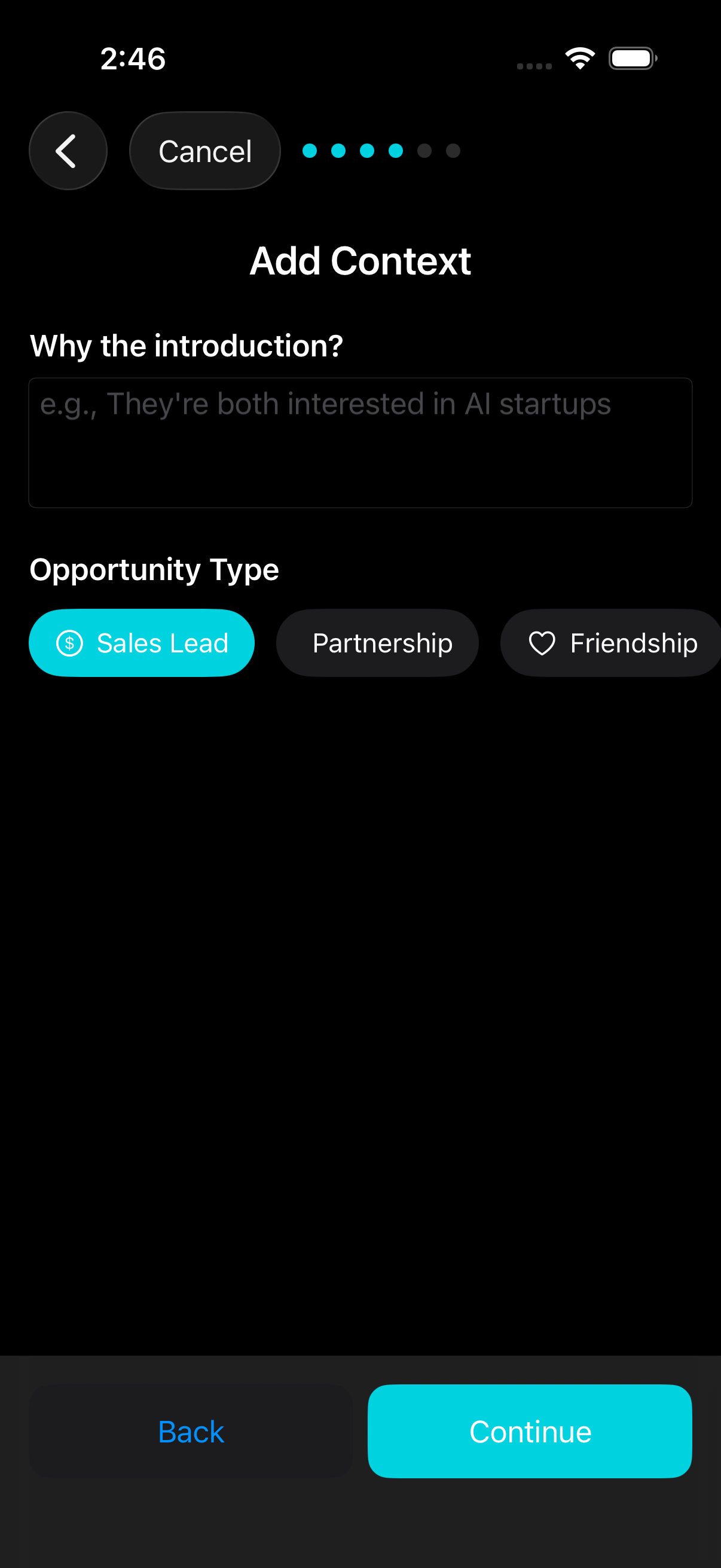
Add context and tag the opportunity
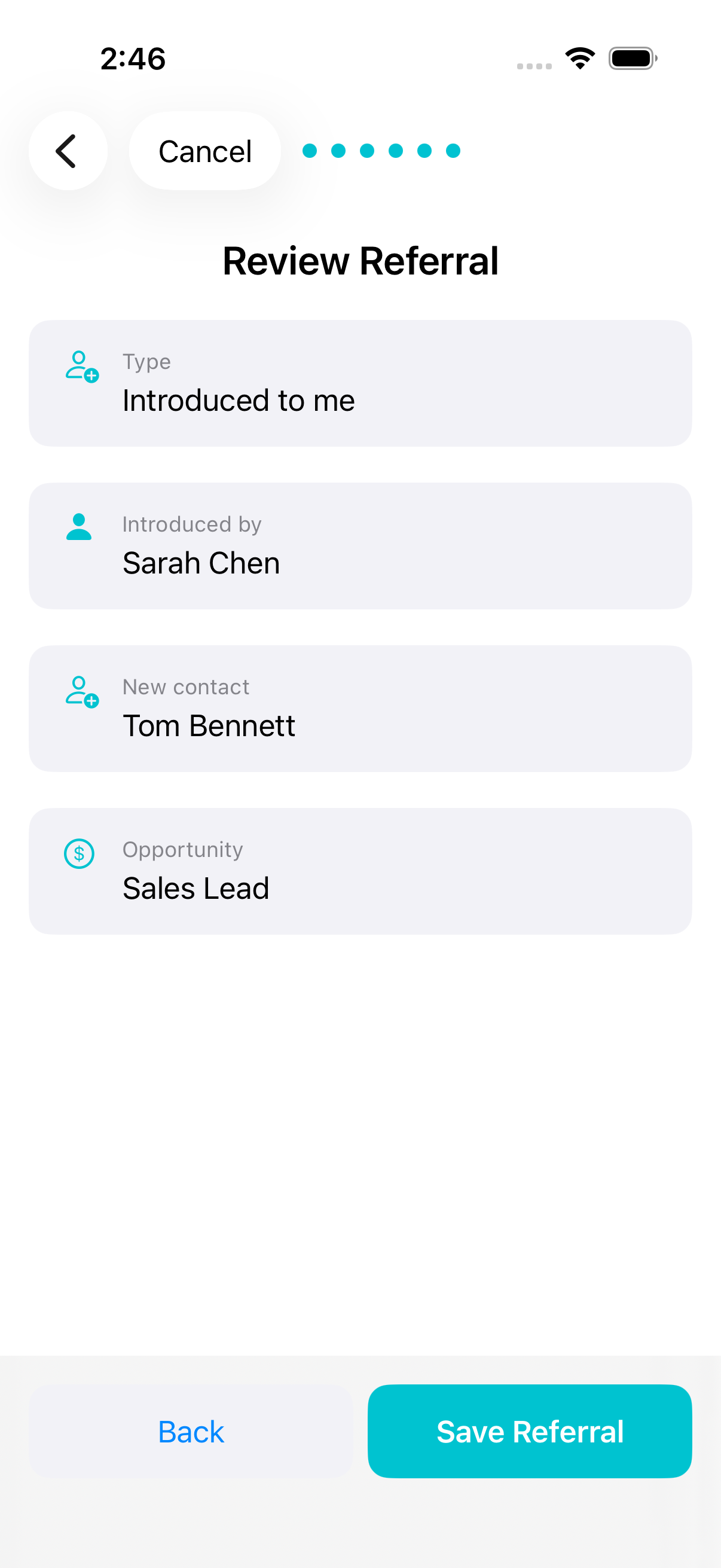
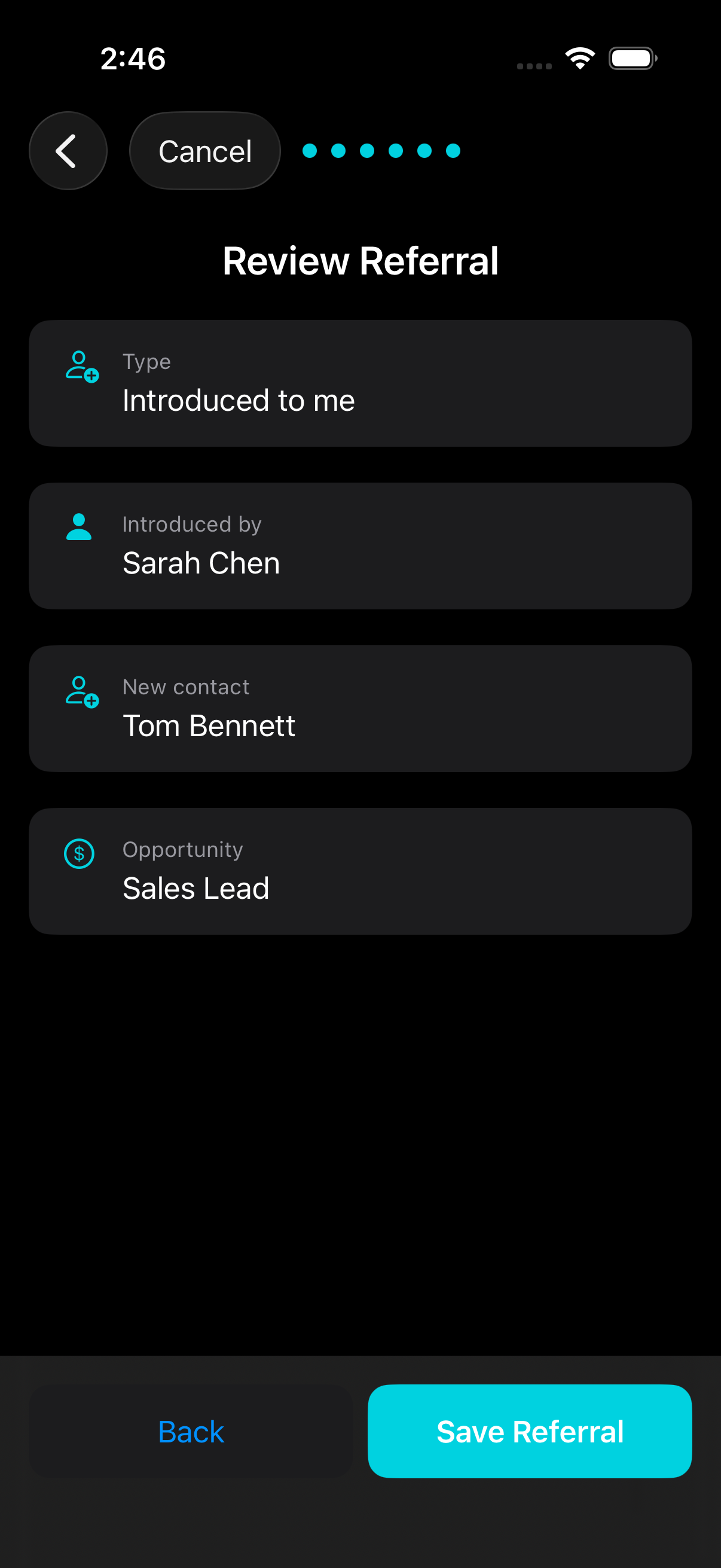
Review and save the referral
Share Cards & Companions
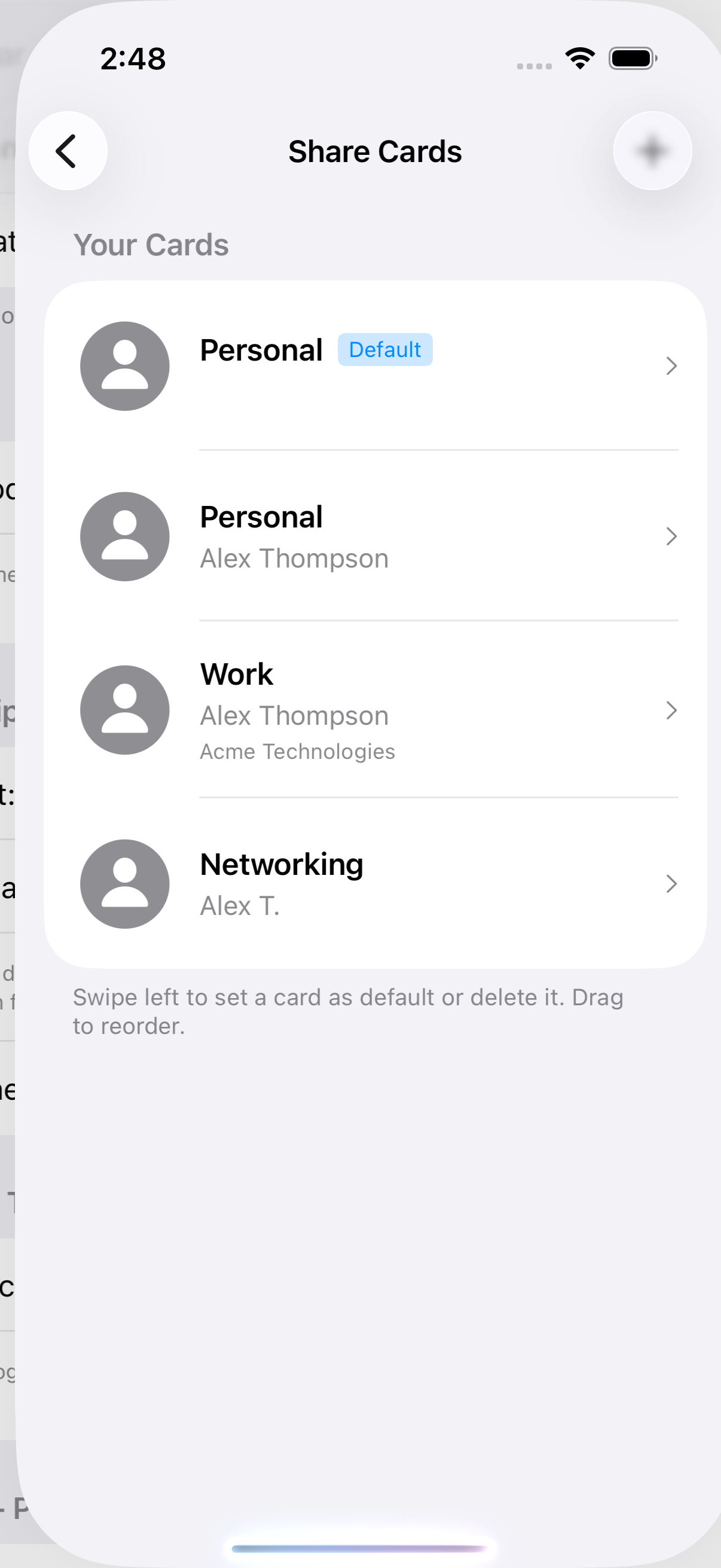
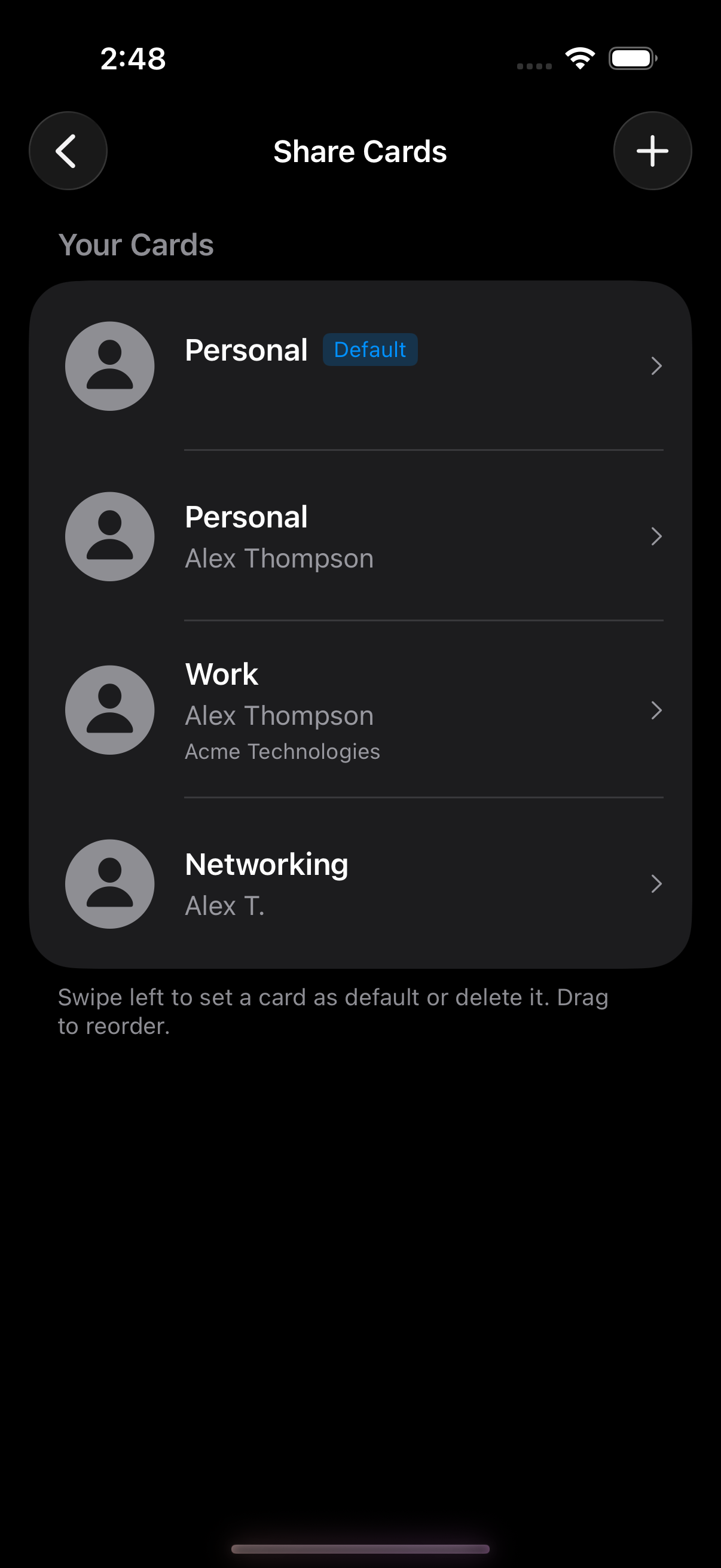
Multiple Personas
Create different ShareCards for different contexts — a professional card with your work email, a personal card with your phone number, or a card for a specific side project. Switch between them when sharing.
Customize Your Card
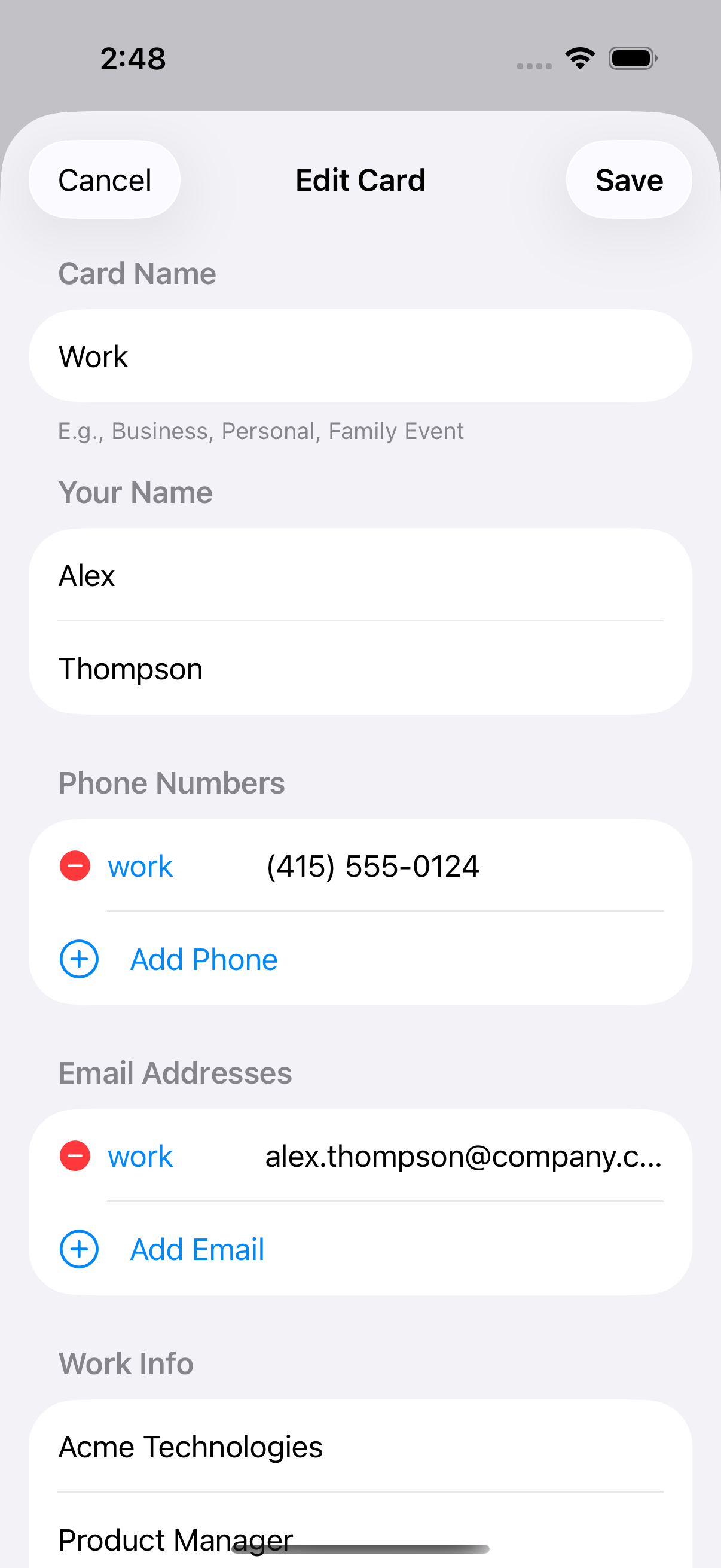
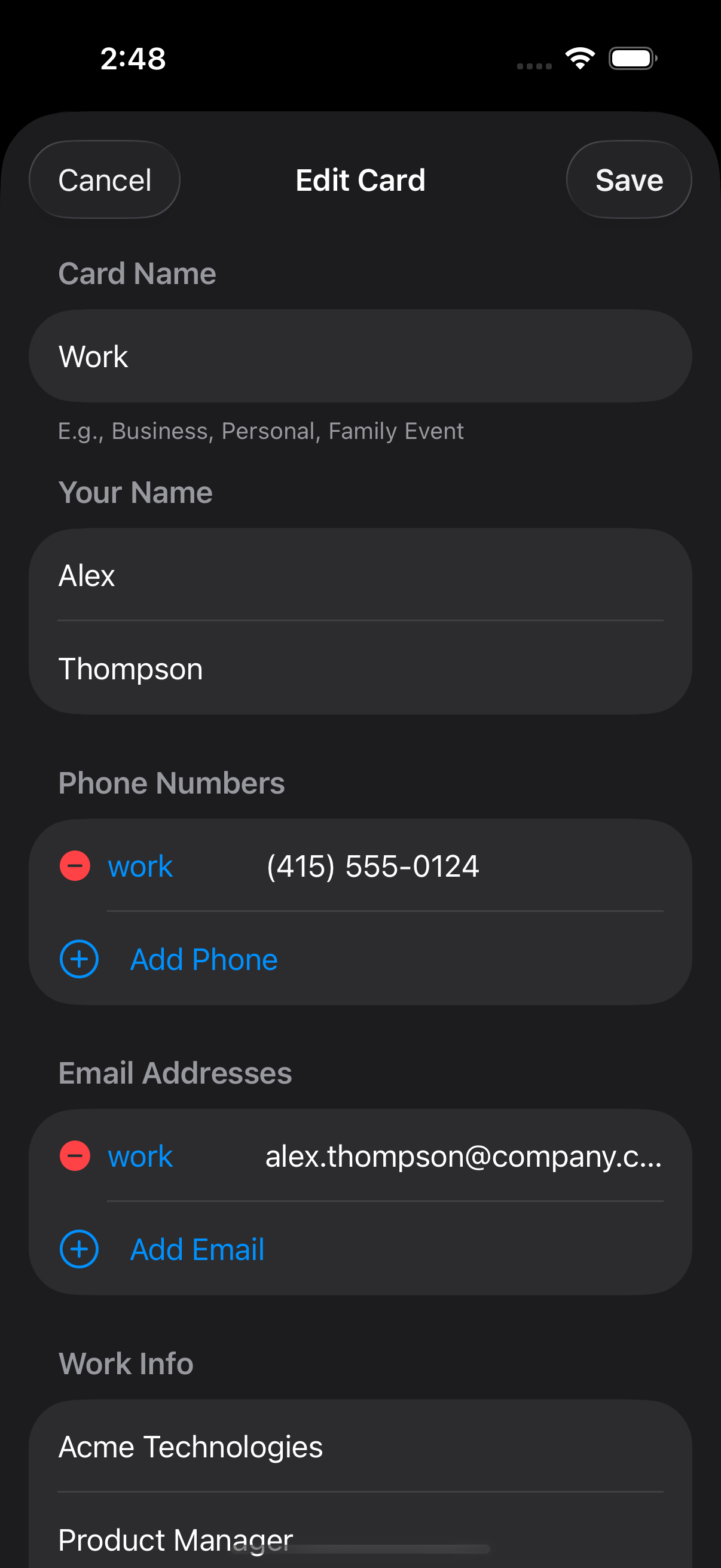
Each ShareCard is fully customizable. Choose exactly which phone numbers, emails, and details to include. Import from an existing contact or build from scratch.
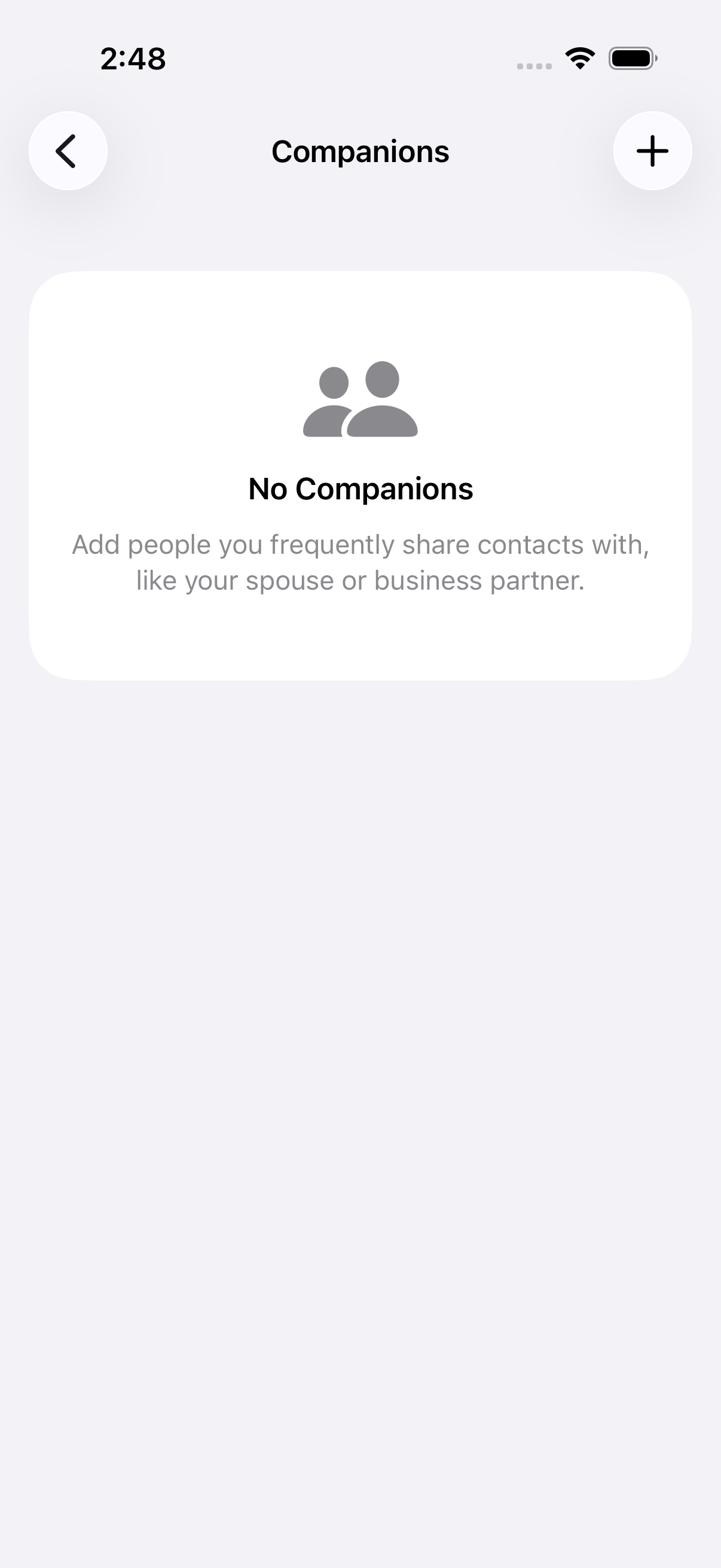

Companions
Pre-configure companions — other contacts you frequently share alongside your own. Perfect for sending your assistant's info, your business partner's card, or a team contact along with yours.
Contact Quality & Audits
Contact Audit
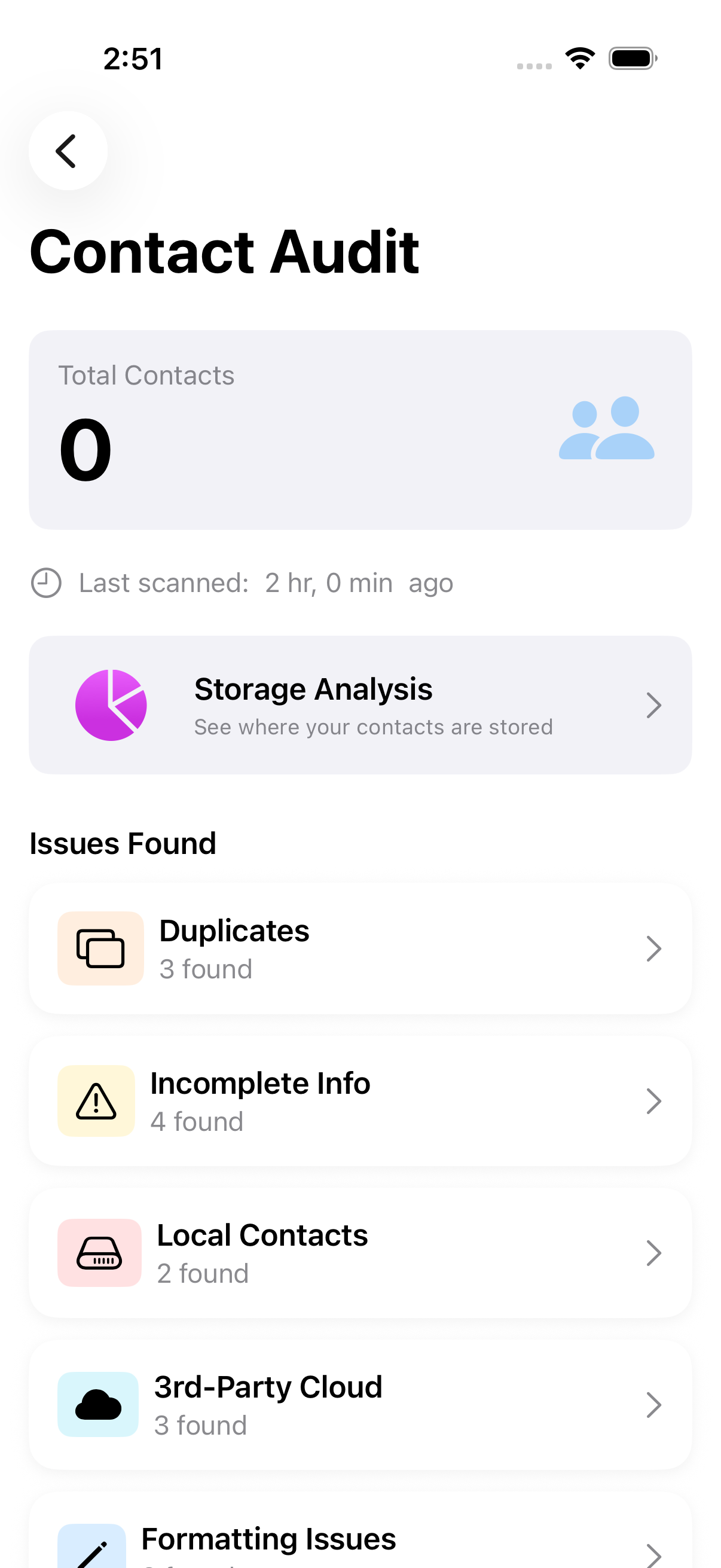
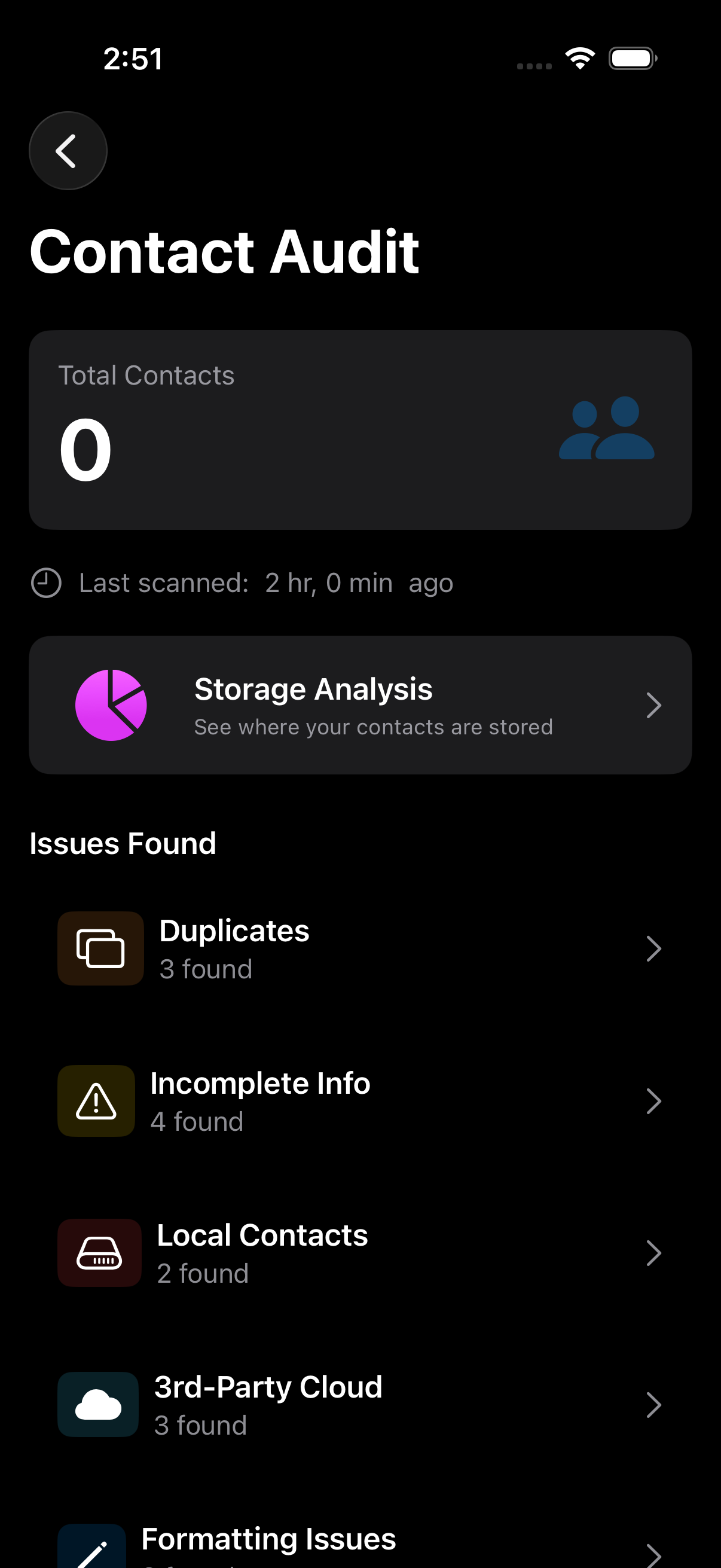
Run a quality audit to find issues across your entire contact book. Nexus scans for duplicates, incomplete contacts, storage mismatches, and formatting inconsistencies — giving you a clear summary of what needs attention.
- • Dashboard badge — the red number on the Audit card shows your total issue count across all categories (duplicates + incomplete + local-only + cloud + formatting). A single contact can appear in multiple categories, so this number may be higher than your total contact count
- • Issue breakdown — see counts for duplicates, incomplete info, local-only contacts, cloud contacts, and formatting problems
- • One-tap drill-down — tap any category to see the specific contacts affected
- • Fix problems before they grow — catch issues early so your contact book stays clean

Find Duplicates
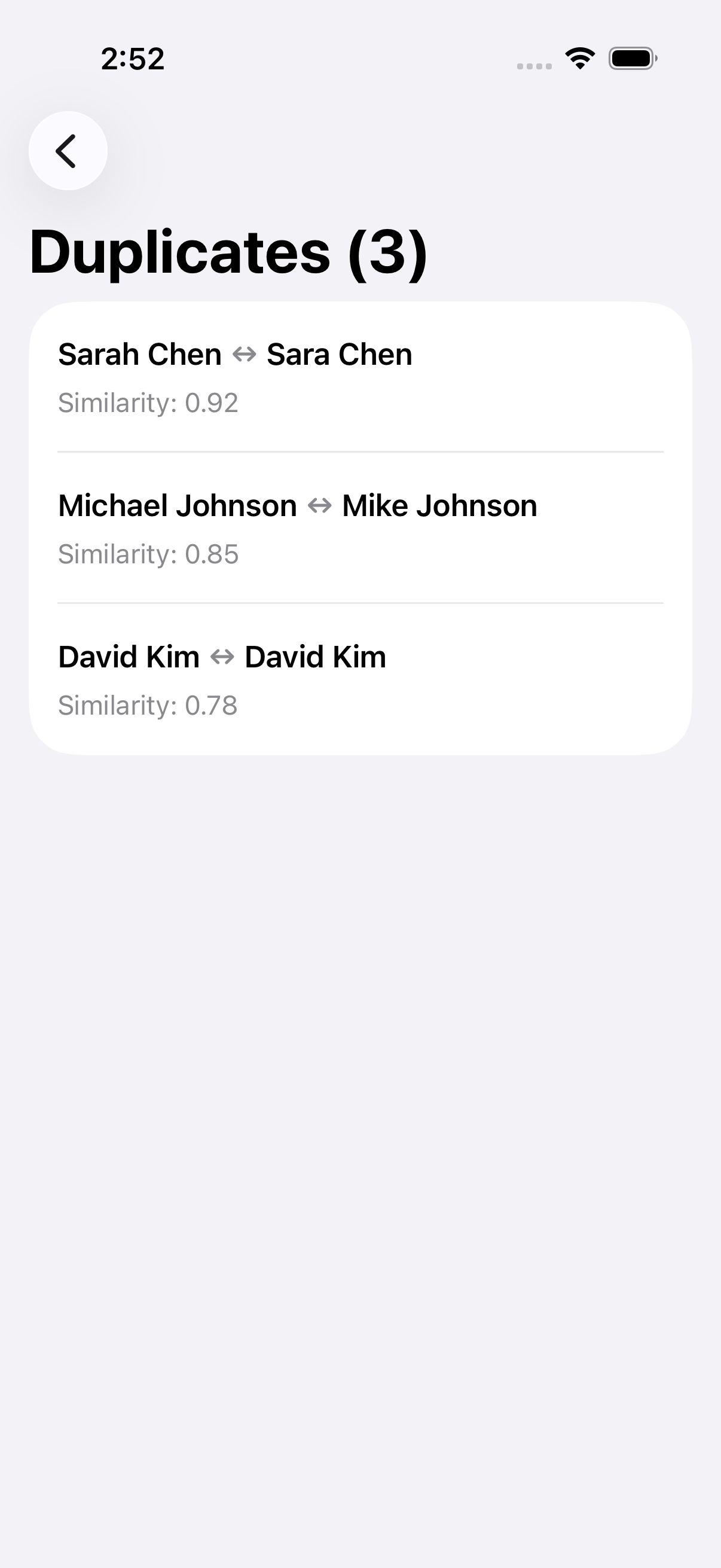
Nexus detects likely duplicate pairs using similarity scoring. Review each match, then merge with confidence — all information from both records is preserved.
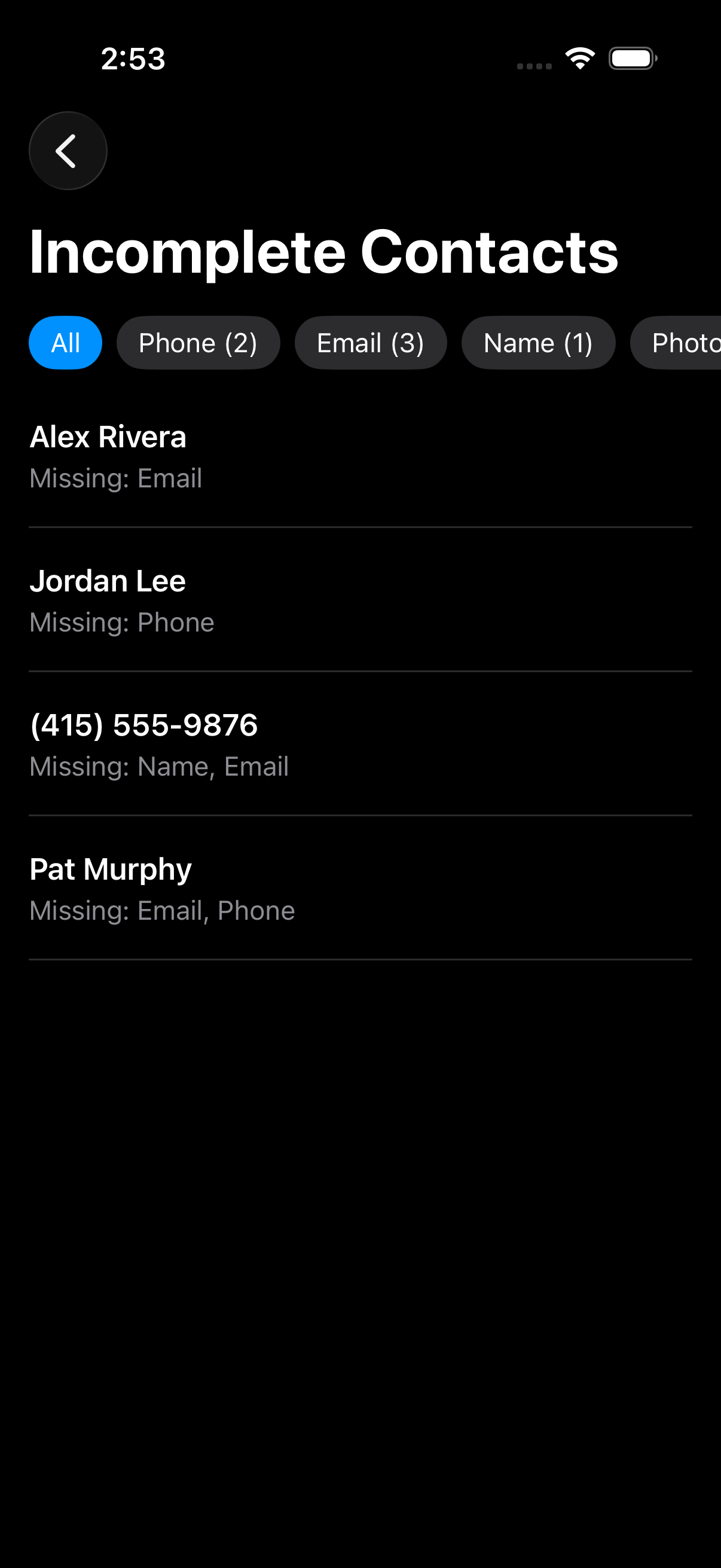
Fix Incomplete
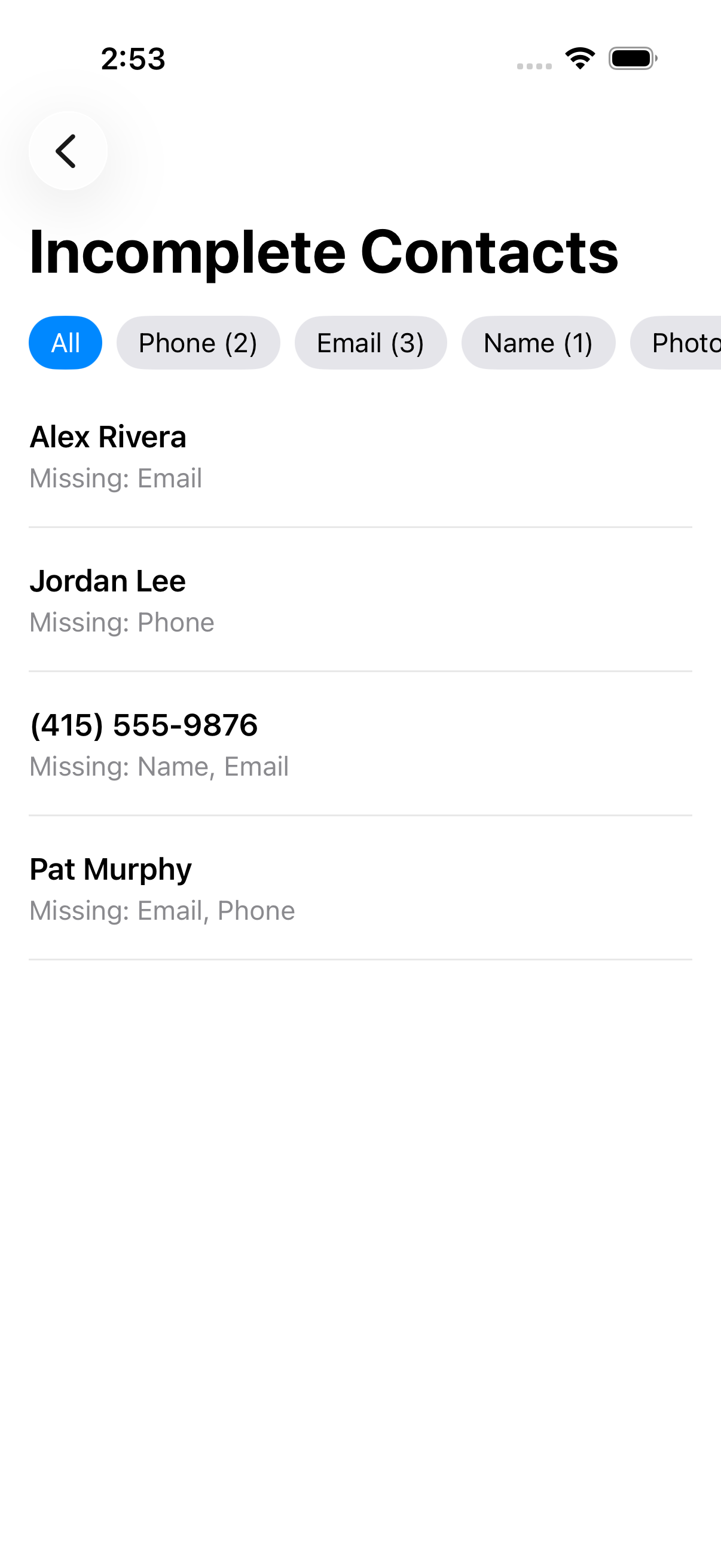
Find contacts missing a phone number, email address, or even a name. Tap any contact to jump straight to editing and fill in the gaps.
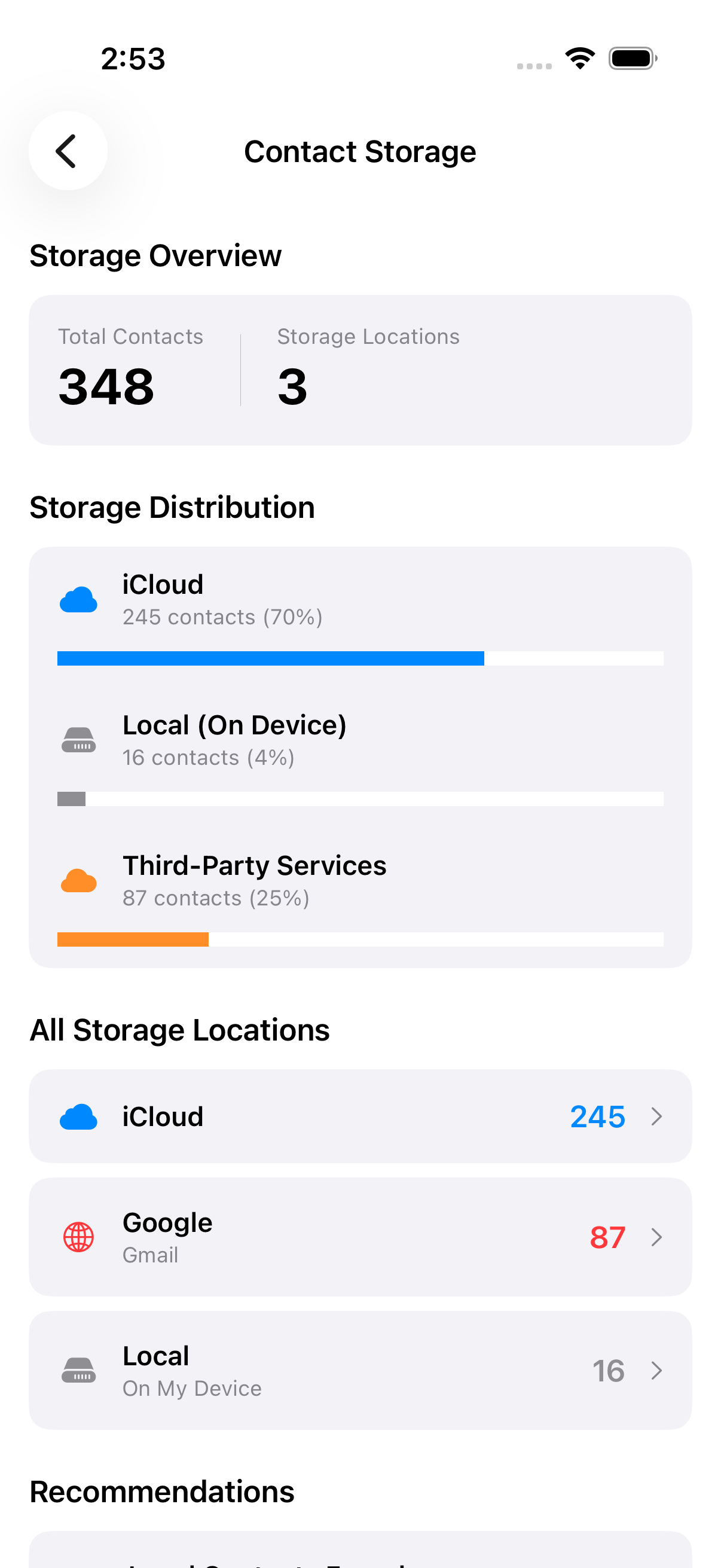
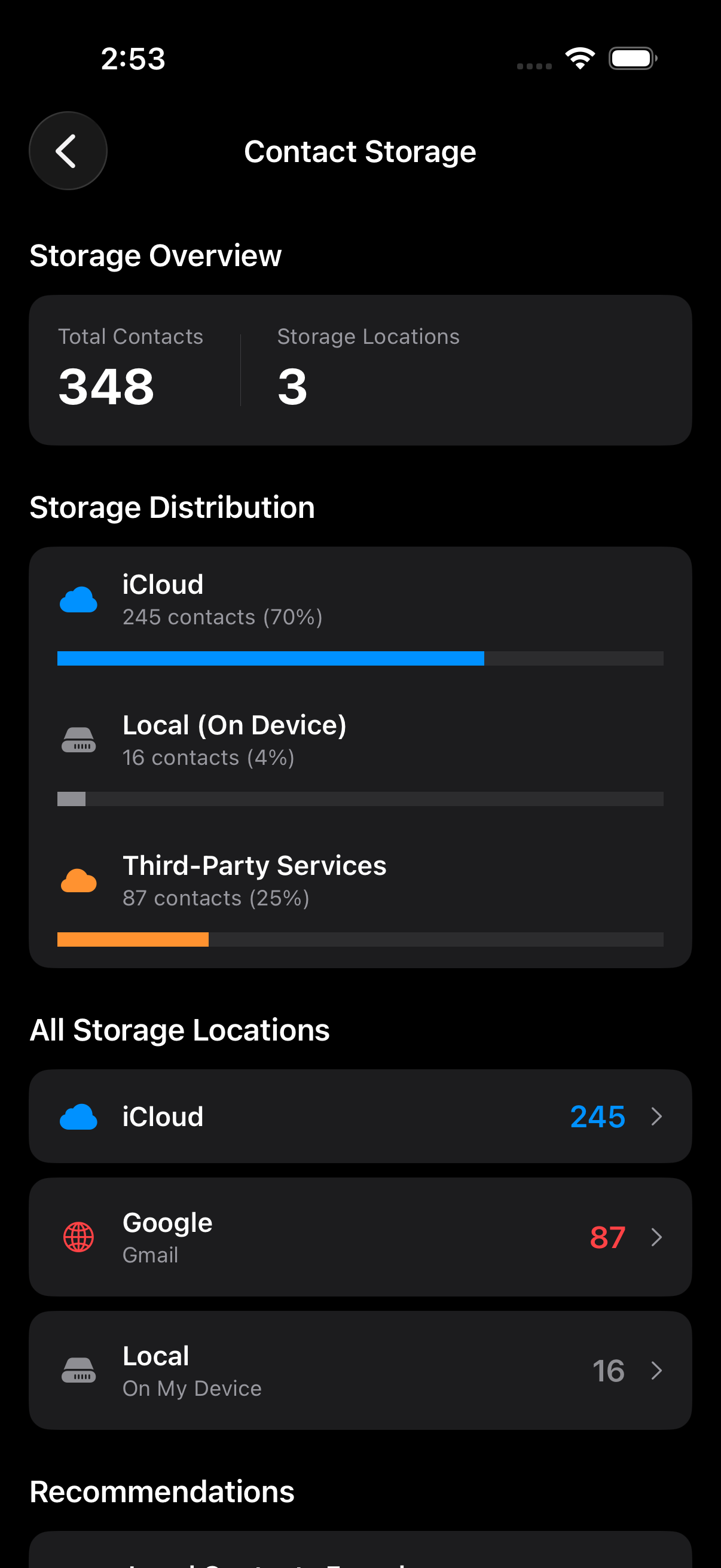
Storage Analysis
See how your contacts are distributed across iCloud, Google, Exchange, and local storage. Identify contacts that aren't backed up to the cloud.
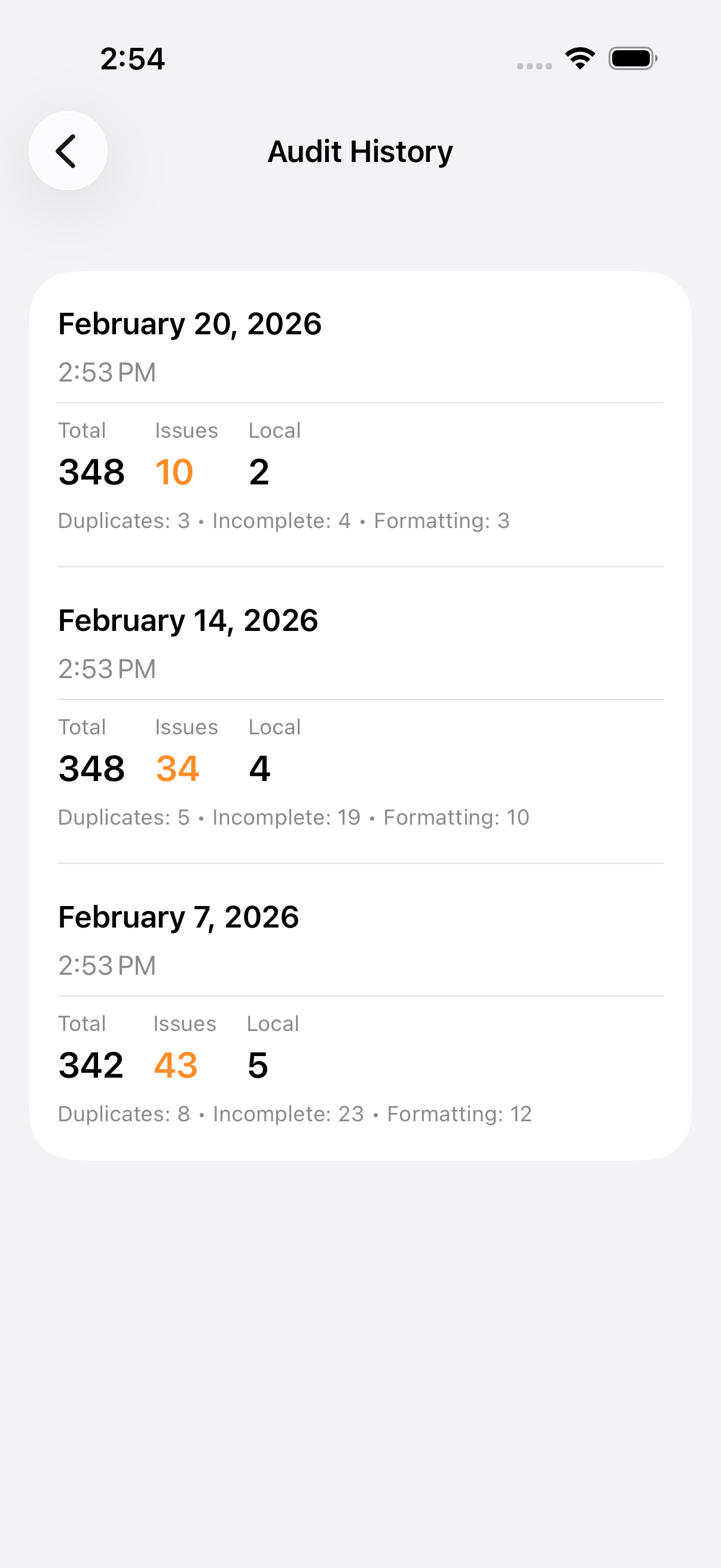
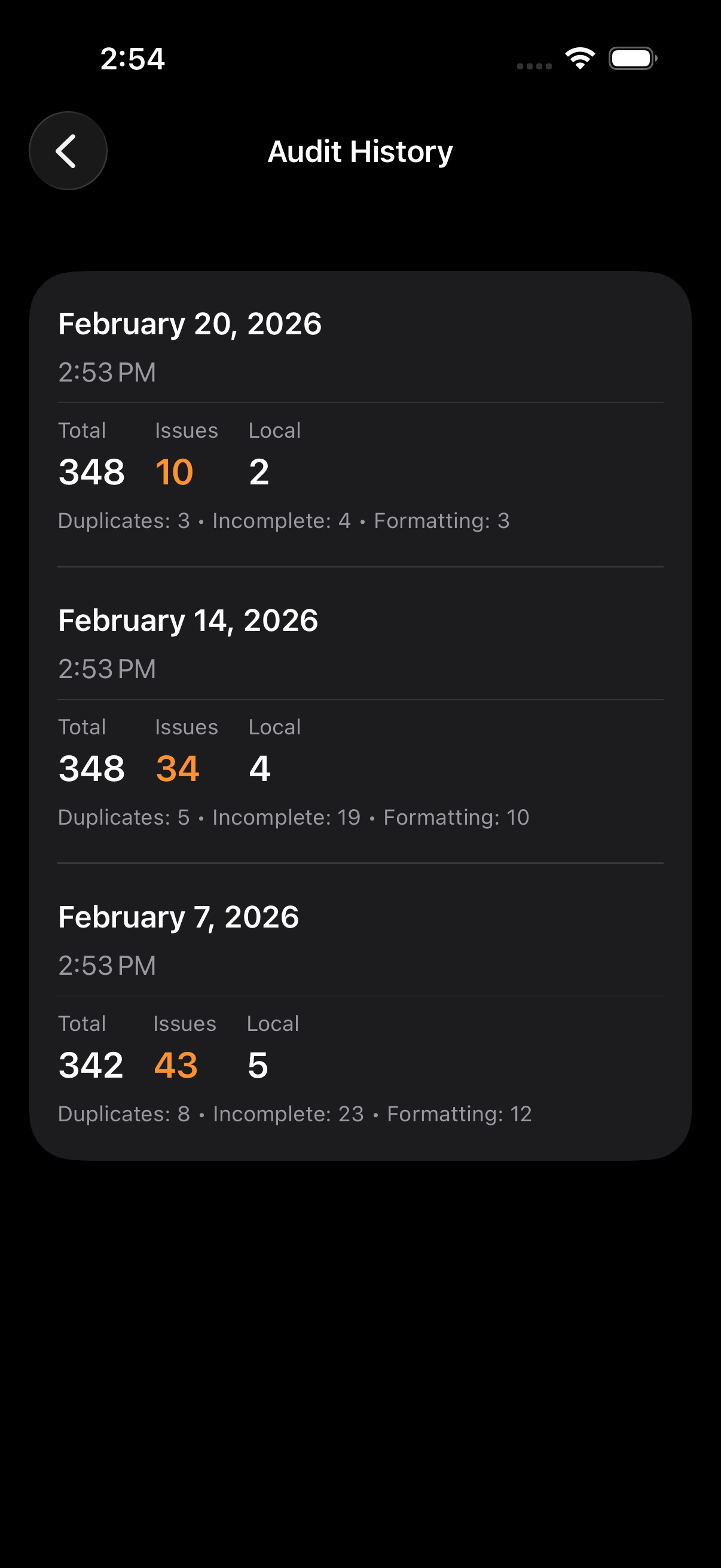
Audit History
Every audit scan is saved so you can track your progress over time. Watch your issue count decrease as you clean up your contacts — a satisfying record of the improvements you've made.
Merge History
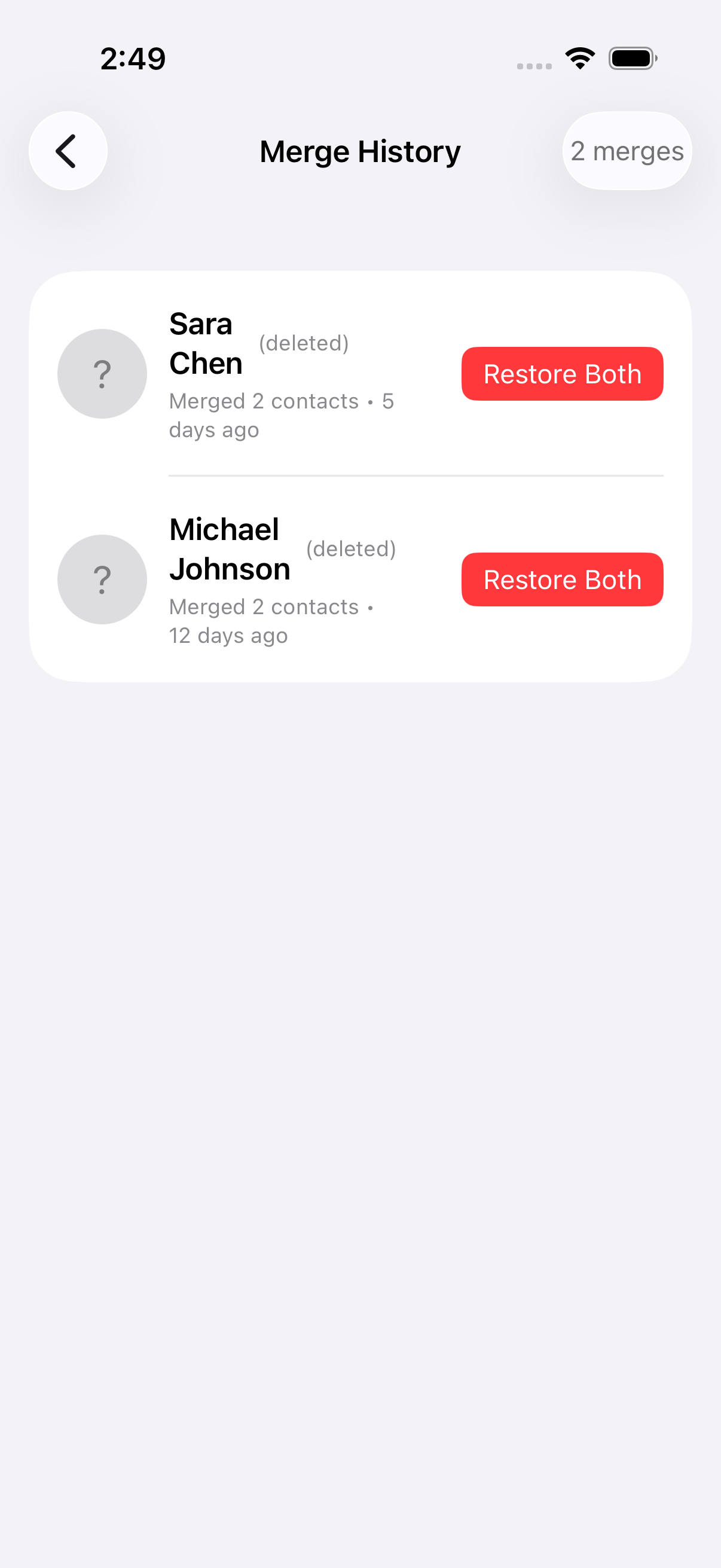
Every merge is tracked with full details. See which contacts were combined and which duplicates were removed. Changed your mind? Restore merged contacts anytime with one tap.
Deleted records are clearly tagged so you always know what happened, and the "Restore Both" button brings everything back instantly.


Archived Contacts
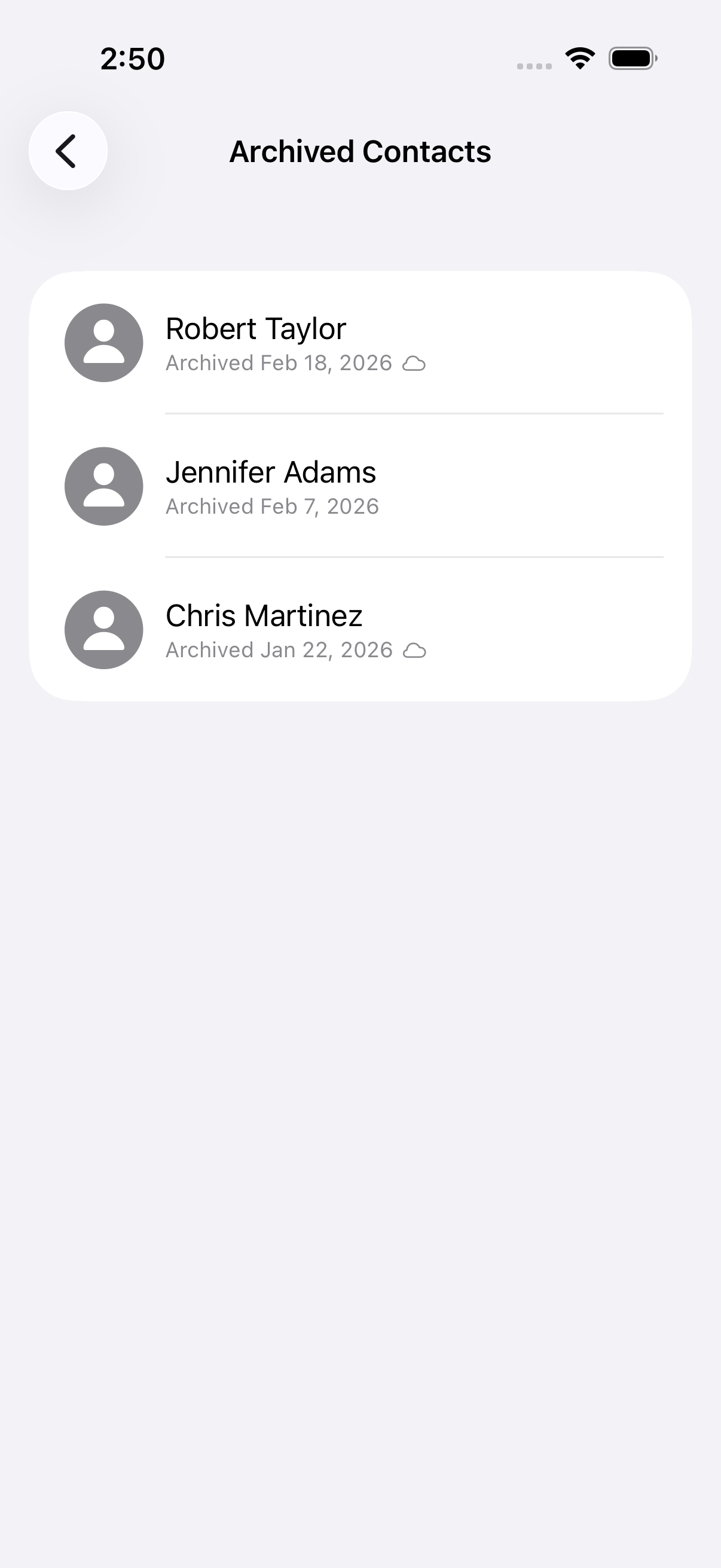
Not ready to delete a contact but want to declutter your list? Archive them instead. Archived contacts are hidden from your main list but preserved with their full history.
Each archived contact shows when it was archived and whether it's synced to the cloud. Restore any contact whenever you need them again.
Settings & History
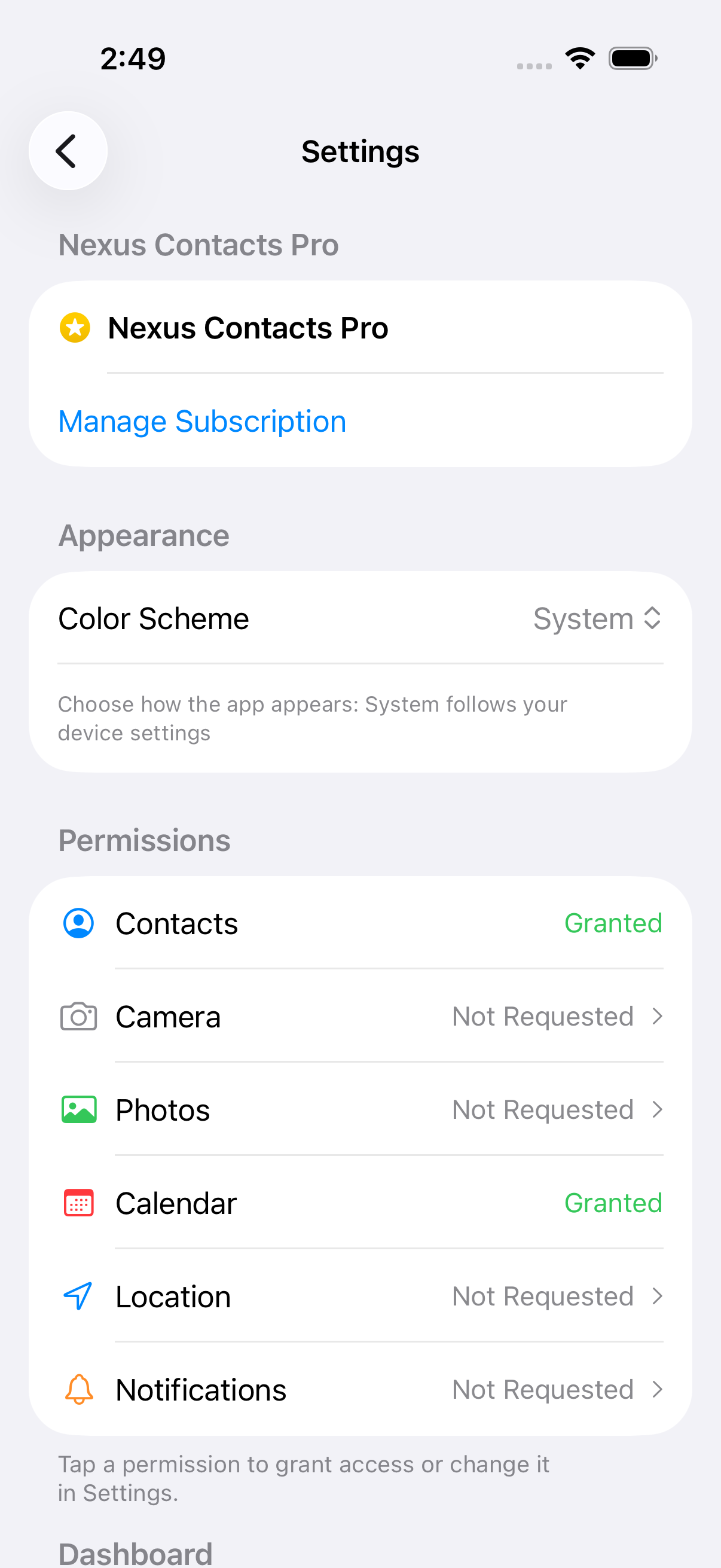
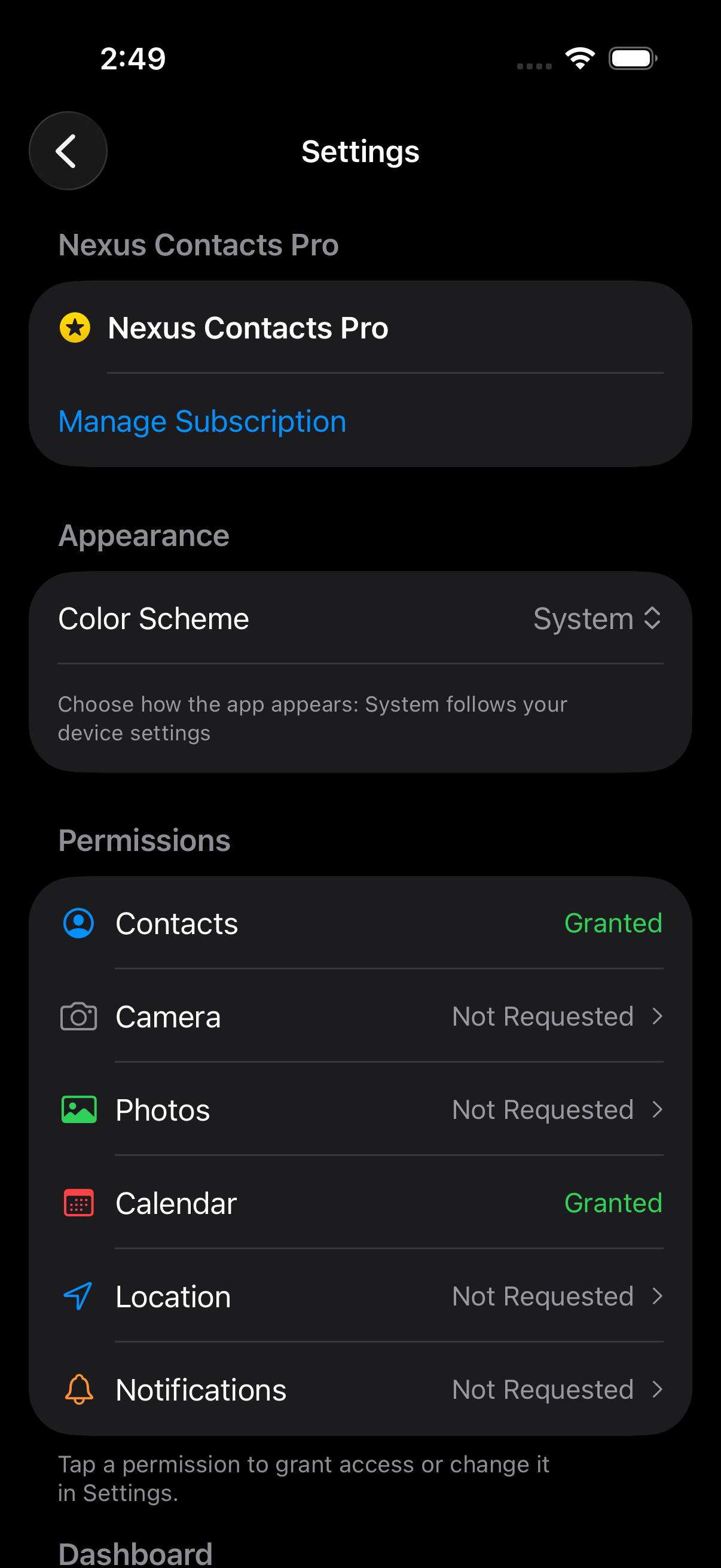
Customize Your Experience
Configure Nexus to fit your workflow. Choose your preferred messaging and calling apps, manage your ShareCards, set up companions, and control dashboard appearance.
Access your archived contacts, merge history, and backup settings — all from one place.
Audit & Merge History
Access your audit history, merge records, and archived contacts from Settings. See how your contact quality improves over time and restore anything you need.
For a deeper look at audit features, see Contact Quality & Audits above.
Ready to remember everyone you meet?
Free to use. Pro features available for power users.